Introduction
Your phone camera can capture a great shot, but the raw file rarely looks finished straight out of the gallery. That gap between “decent” and “shareable” is exactly why so many people search for the best free photo editing apps for smartphones every year. The good news is that some of the strongest tools in this space cost nothing at all. This article walks through the top free options for iPhone and Android, what each one actually offers for free, and where the limits kick in. By the end, picking a mobile photo editor should feel simple instead of overwhelming.
A quick note before diving in: “free” means different things across these apps. Some, like Snapseed, are free with no strings attached at all. Others give away a generous starter tier and save the deeper tools for a paid plan. Knowing which type of free an app offers helps set the right expectations before a person commits time to learning it.
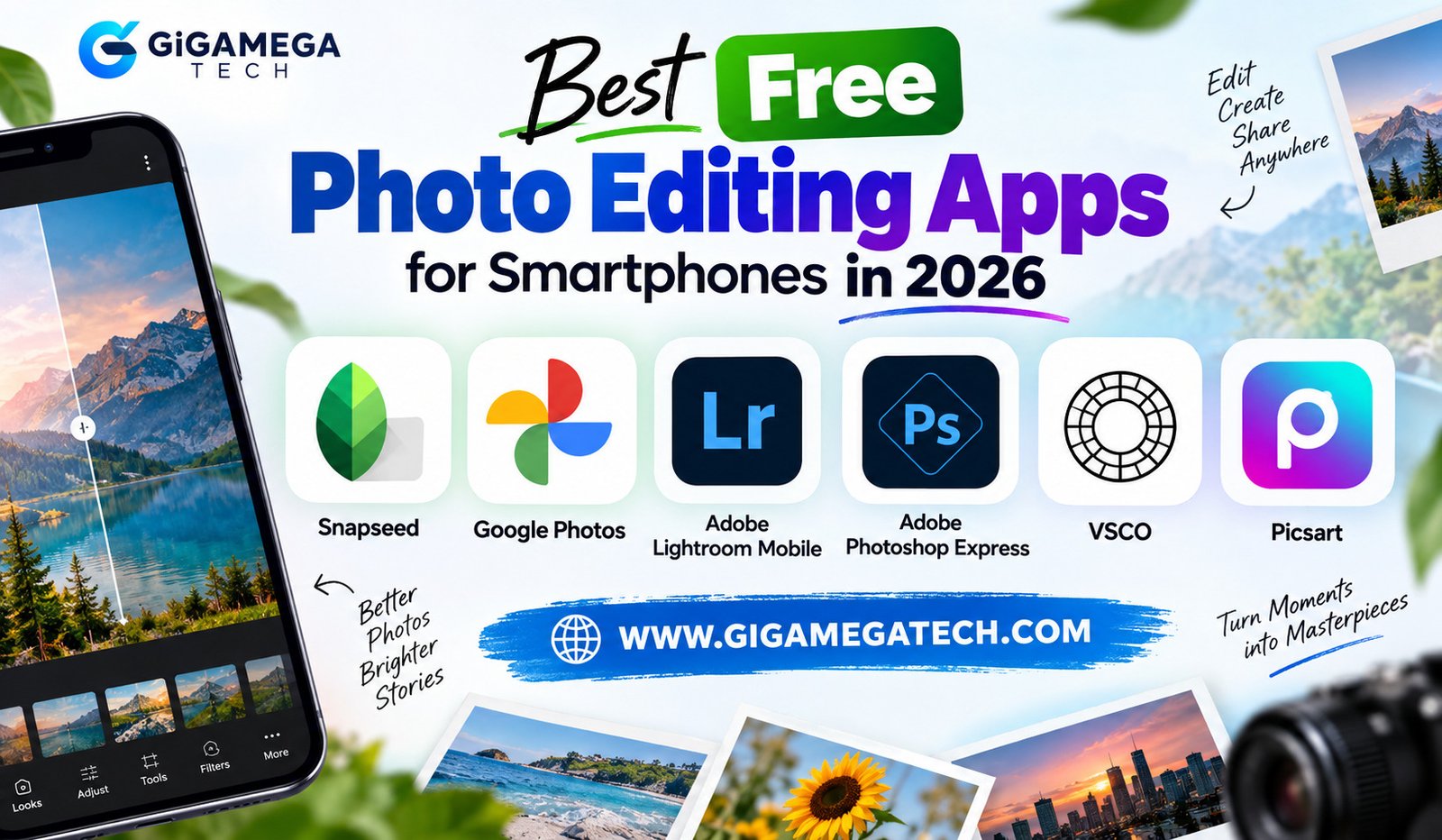
Snapseed: The Most Complete Free Editor
Snapseed is a Google-made app that has stayed free since 2011. It runs on both iPhone and Android with no ads, subscriptions, or watermarks anywhere in the app.
The toolkit includes more than 25 tools and filters. Users get exposure and color correction, curves, healing, selective adjustments, and full RAW file support.
A recent update added batch editing and a built-in camera with film-style looks. Saved edits, called Looks, can be applied to new photos with one tap.
Why it stands out
- Works fully offline with no account required
- Handles both JPEG and RAW images
- No desktop version, so editing stays phone-only
Snapseed suits anyone who wants full manual control without paying a cent, though it does not offer cloud syncing across devices.
The learning curve is a little steeper than a simple filter app, since Snapseed leans on sliders and stacked edits rather than one-tap presets alone. Spend a weekend testing the healing brush and selective adjustment tools, though, and the payoff shows up fast. Portraits, landscapes, and low-light shots all benefit from the same core toolkit, so there is no need to jump between apps for different subjects.
Google Photos: Editing Tools You Already Own
Most Android and iPhone users already have Google Photos installed, which makes it an easy starting point. Basic adjustments such as crop, brightness, color, and simple filters are free for everyone.
The bigger draw is Magic Eraser and Magic Editor, which use AI to remove unwanted people or objects from a photo. On non-Pixel phones, Google currently allows 10 free Magic Editor saves each month before it asks for a Google One subscription.
Pixel phone owners get unlimited use of these AI tools built into the device. For everyone else, the free allowance is enough to try the feature on a handful of photos.
Google Photos will not replace a dedicated editor for detailed work, but it covers quick touch-ups without installing anything extra.
Adobe Lightroom Mobile: Free Color Grading Power
Adobe Lightroom Mobile has a genuinely useful free tier. It covers exposure, contrast, cropping, color grading, healing, and access to presets.
The AI-driven Enhance tool also works without a paid plan, which is unusual for an Adobe product. This gives casual users a taste of the same color science that professional photographers rely on.
Selective masking, DSLR RAW import, geometry correction, and full cloud sync sit behind the Premium tier. That subscription runs $9.99 a month as part of Adobe’s Photography Plan.
Free tier vs. Premium
- Free: basic edits, presets, and AI Enhance
- Premium: masking, RAW import, batch editing, cloud storage
For anyone learning color correction for the first time, the free version alone is a solid training ground.
Presets deserve a special mention here. A person can download a preset made by someone else, apply it in one tap, then nudge the sliders to match their own photo. That workflow teaches color grading almost by accident, since it invites comparison between the starting point and the finished look every single time.
Adobe Photoshop Express: Fast Fixes and Fun Extras
Photoshop Express is a separate, lighter Adobe app built for speed rather than depth. It focuses on quick edits, filters, collages, and playful add-ons like stickers.
One standout free feature is an auto-masking tool that detects the main subject in a photo. This makes selective edits, like brightening a face while leaving the background alone, far easier for beginners.
Photoshop Express will not match Lightroom for serious color work, but it fits well for someone who wants a fast, casual edit before posting a photo online.
VSCO: Filters Built for a Consistent Feed
VSCO takes a different approach than Snapseed or Lightroom. It leans on film-style filters and presets rather than deep manual tools.
The free version includes basic filters and manual exposure controls, along with a large preset library to browse. Many users choose VSCO specifically to keep an entire photo feed looking cohesive.
Paid tiers unlock the full preset catalog and extra editing tools. VSCO Plus costs $7.99 a month or $29.99 a year, while VSCO Pro runs $12.99 a month or $59.99 a year.
VSCO fits people who care more about a consistent visual style than pixel-level correction.
Picsart: Creative Tools With a Few Strings Attached
Picsart bundles photo editing, design templates, stickers, and AI tools into one app. The free tier is genuinely functional, not just a locked demo.
Free users get core editing tools such as crop, rotate, color adjustment, and filters. A limited number of daily AI actions, including background removal, are also included at no cost.
The catch shows up with watermarks on some AI-processed outputs, plus no commercial license for business use and no batch editing at the free level. Storage is capped at 2GB as well.
Picsart works best for casual, personal edits. Anyone editing for a business or brand should expect to hit its free limits fairly quickly.
Where Picsart genuinely shines for free is variety. Trending templates, stickers, and text styles make it easy to build a social media post rather than a single edited photo. That mix of design and editing in one place is not something Snapseed or Lightroom try to offer.
How to Pick the Best Free Photo Editing App for Your Phone
There is no single right answer here, since these apps solve different problems. The right choice depends on what a person actually needs from an edit.
- Want full manual control with zero limits? Choose Snapseed.
- Already have the app installed and just need quick touch-ups? Use Google Photos.
- Learning color grading or shooting RAW? Start with Lightroom Mobile’s free tier.
- Need a fast, fun edit before posting? Try Photoshop Express.
- Building a matching photo feed? Reach for VSCO.
- Want templates and creative extras for personal use? Test Picsart.
Many people end up using two apps together, one for precise correction and another for style or extras.
Key Takeaways
- Best all-around free editor: Snapseed, with 25-plus tools and no ads or watermarks.
- Easiest starting point: Google Photos, already installed with basic edits included.
- Best for learning color grading: Adobe Lightroom Mobile’s free tier, including AI Enhance.
- Best for quick, fun edits: Adobe Photoshop Express and its auto-masking tool.
- Best for a consistent feed: VSCO’s filter and preset library.
- Watch for limits: Picsart’s free tier adds watermarks to some AI outputs and skips commercial use.
FAQs
What is the single best free photo editing app for smartphones? Snapseed is widely considered the best free photo editing app for smartphones because it includes more than 25 tools with no ads, subscriptions, or watermarks.
Can a person edit RAW photos for free on a phone?
Snapseed and the free tier of Adobe Lightroom Mobile both support RAW file editing on a phone at no cost.
Does Google Photos remove objects from pictures for free?
Google Photos allows 10 free Magic Editor saves per month on most phones, with unlimited use only on Pixel devices or a paid Google One plan.
Is Picsart actually free to use?
Picsart offers a working free tier, but it adds watermarks to some AI-generated results and does not include a commercial license.
Which free app works best for a matching Instagram feed?
VSCO is the strongest free option for a consistent feed because of its large filter and preset library.
Conclusion
Choosing among the best free photo editing apps for smartphones comes down to matching the tool to the task. Snapseed remains the strongest pick for anyone who wants complete manual control without paying anything. Google Photos covers quick fixes for people who prefer to skip a new download entirely. Lightroom Mobile, Photoshop Express, VSCO, and Picsart each add their own strengths, whether that is color grading, playful extras, a consistent aesthetic, or creative templates. Testing two or three of these apps on the same photo is often the fastest way to find the right fit for a personal workflow.