





Introduction
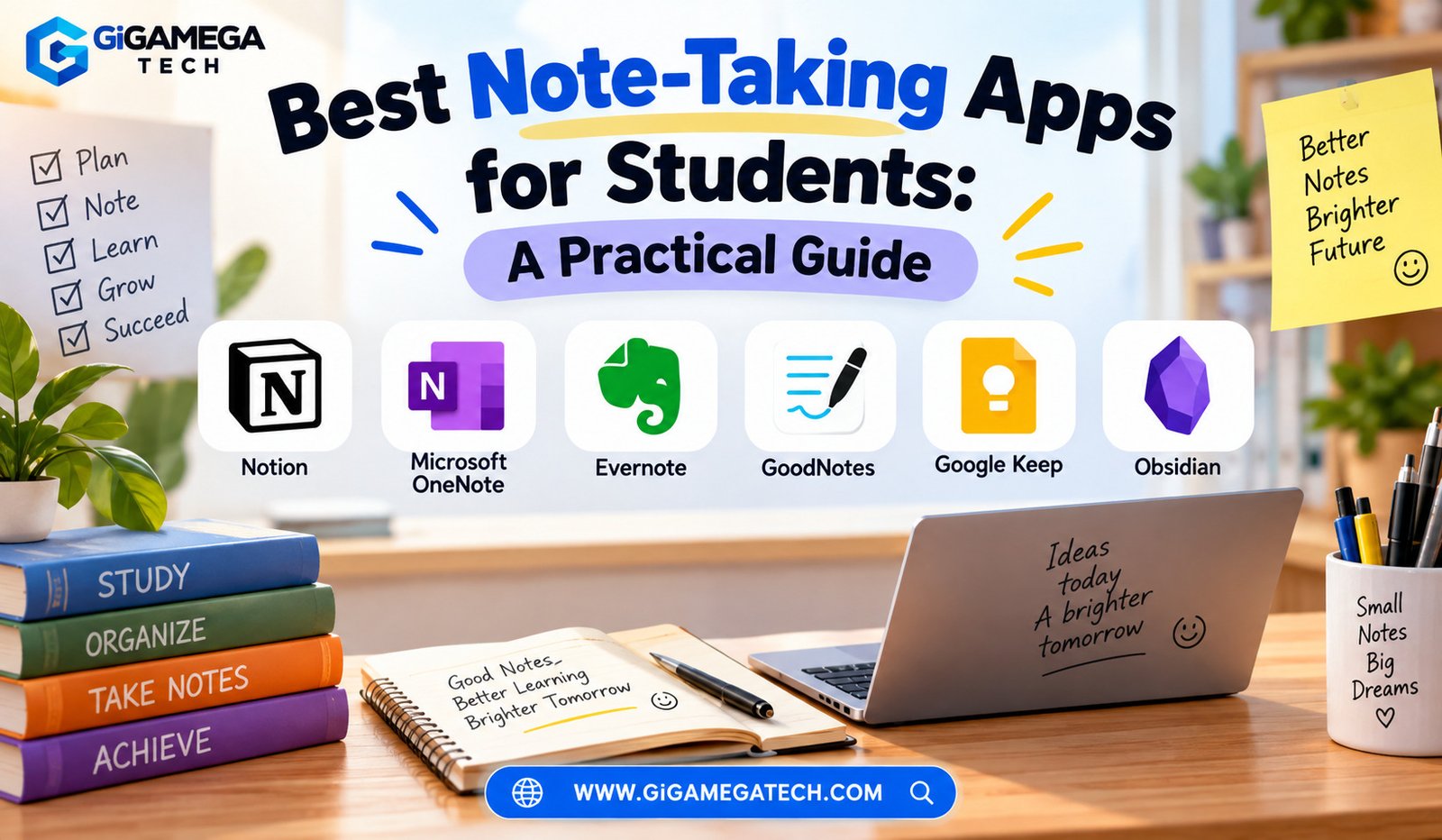
Every student has faced the same problem. Class notes scattered across notebooks, sticky notes, and random phone screenshots. Finding the best note-taking apps for students can fix that mess in a single afternoon.
A good app does more than store text. It helps you find things later, study smarter, and keep your class material organized by subject. This guide looks at some of the most useful apps out there today, what each one does well, and where each one falls short. By the end, you should have a clear idea of which app fits your study habits.
What to Look For in a Note-Taking App
Before picking an app, think about how you actually study. Some students prefer typing. Others prefer writing by hand on a tablet.
Here are a few things worth checking before you commit to one app:
- Cross-device sync so your notes follow you from laptop to phone
- Search function that works inside images and handwriting, not just typed text
- Support for tables, checklists, and file attachments
- A free plan or student discount, since budgets matter
- Offline access for note-taking during travel or in low-signal buildings
Not every app will check every box. That is normal. The goal is matching the app to your habits, not chasing the app with the most features.
Notion Best All-in-One Workspace
Notion works like a flexible workspace rather than a plain notebook. You can build class note pages, assignment trackers, and reading lists inside one connected system.
The app uses a block-based editor. Each line, image, or table is its own block that you can move around freely. This makes it easy to restructure a page without starting over.
Notion also supports databases, which let you organize notes by course, due date, or topic and filter them instantly. Students juggling several subjects at once tend to like this feature a lot.
Strengths
- Highly customizable templates for class schedules and study plans
- Works well for group projects through shared workspaces
- Free plan available for personal use
Drawbacks
- Steeper learning curve compared to simpler apps
- Can feel slow on older devices with large workspaces
Microsoft OneNote Best Free Option for Windows Users
OneNote has been around for years, and it still holds up well for students who already use Microsoft Office. It comes free with most Windows machines and integrates smoothly with Word and Outlook.
The app organizes notes using notebooks, sections, and pages, similar to a physical binder. This structure feels familiar right away, with no real adjustment period needed.
One standout feature is handwriting-to-text conversion, useful for students who take notes on a tablet with a stylus and want searchable text afterward.
Strengths
- Free across Windows, Mac, iOS, and Android
- Simple layout that mirrors a physical notebook
- Good support for audio recording alongside typed notes
Drawbacks
- Interface feels dated compared to newer apps
- Syncing between devices can occasionally lag
Evernote Best for Long-Term Note Archiving
Evernote built its reputation on powerful search and long-term storage. If you plan to keep four years of college notes in one place, this app handles that job well.
Its search tool can find text inside scanned documents and photos, not only typed notes. That makes it genuinely useful for archiving handouts, printed slides, or old assignments.
Evernote also supports a web clipper, which saves entire articles or web pages directly into your notebook for later reading.
Strengths
- Strong search across text, images, and PDFs
- Reliable for long-term storage and organization
- Good tagging system for cross-referencing notes
Drawbacks
- Free plan limits device sync to a small number of devices
- Premium pricing has increased compared to earlier years
GoodNotes Best for Handwritten Notes
Some students simply think better with a pen in hand. GoodNotes recreates that experience digitally, using a tablet and stylus instead of paper.
The app mimics real paper texture and pen strokes closely enough that many people forget they are writing digitally. You can also import PDFs, such as lecture slides, and annotate directly on top of them.
Its handwriting search feature scans your written notes and finds matching words, even if your handwriting is a little messy.
Strengths
- Realistic handwriting experience with adjustable pen types
- Great for annotating PDFs and lecture slides
- Works offline once notes are downloaded
Drawbacks
- Requires a tablet and stylus to get full value
- One-time purchase cost, rather than a fully free plan
Google Keep Best for Quick, Simple Notes
Not every note needs a full folder structure. Sometimes you just need to jot something down fast before it slips your mind. Google Keep does exactly that.
The app uses color-coded sticky notes, and syncing happens instantly through your Google account. There is no learning curve at all, which is part of its appeal.
Keep also supports voice-to-text notes, so you can record a quick thought while walking between classes and turn it into text later.
Strengths
- Extremely simple and fast to use
- Free with any Google account
- Great for reminders, checklists, and short notes
Drawbacks
- Lacks advanced formatting or nested organization
- Not ideal for long essays or detailed research notes
Obsidian Best for Connecting Ideas
Obsidian takes a different approach. Instead of folders, it lets you link notes to each other, building a web of connected ideas over time.
This method suits students working on research papers or subjects where concepts build on each other, like philosophy, law, or the sciences. You can click through related notes the way you would click through a website.
The app stores notes as plain text files on your own device, which means you fully own your data. Nothing lives only inside a company’s servers.
Strengths
- Bi-directional linking between notes builds a personal knowledge base
- Notes stored locally, giving full control over your files
- Free for personal use, with optional paid sync
Drawbacks
- Takes time to learn the linking system properly
How to Pick the Right App for You
There is no single winner here. The right choice depends on your course load, your device, and how your brain organizes information.
If you like structure and planning, Notion or OneNote will likely suit you. If you write by hand, GoodNotes is worth the investment. If you just need quick reminders, Google Keep covers that without any fuss. Students doing heavy research might get the most value from Obsidian or Evernote.
Try one app for a full week before switching. Jumping between apps too often can undo the organizational benefit you are looking for in the first place.
Key Takeaways
- Best all-in-one option: Notion, for students who want notes, planning, and databases together
- Best free Windows app: Microsoft OneNote, especially for Office users
- Best long-term archive: Evernote, thanks to its strong search tools
- Best for handwriting: GoodNotes, paired with a tablet and stylus
- Best for quick notes: Google Keep, for speed and simplicity
- Best for research-heavy work: Obsidian, through linked notes
FAQs
Is Notion good for college students?
Yes, Notion works well for students who want to combine notes, schedules, and project tracking in one place.
Do I need a tablet to use GoodNotes?
A tablet with a stylus gives the best experience, though the app can technically run on other devices too.
Which note-taking app is completely free?
Google Keep and OneNote are both free across all major devices.
Can I use these apps without an internet connection?
Most of these apps, including OneNote, GoodNotes, and Obsidian, offer offline access once notes are downloaded.
Is Obsidian hard to learn?
It takes some getting used to, mainly because of its linking system, but most students adjust within a few weeks.
Conclusion
Choosing among the best note-taking apps for students really comes down to your own study style. Notion suits organizers, OneNote suits Windows users, Evernote suits archivists, GoodNotes suits handwriters, Google Keep suits speed, and Obsidian suits researchers connecting big ideas. Pick the one that matches how you already think, and your notes will finally start working for you instead of against you.