Introduction
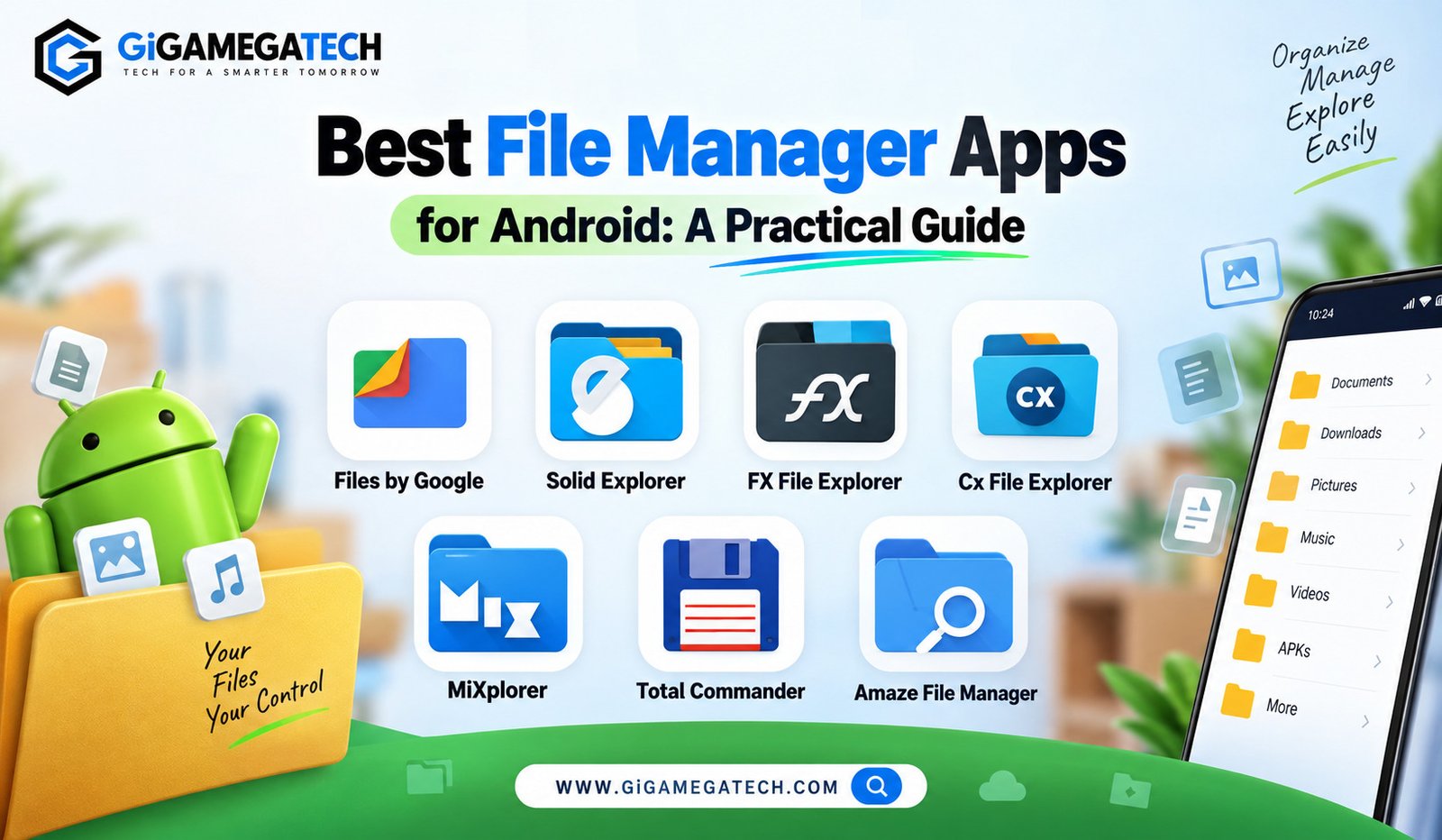
Your phone stores far more than photos. Documents, downloads, app data, and old screenshots pile up until finding anything feels like digging through a junk drawer. This guide covers the best file manager apps for Android, so you can organize, move, and clean up your files without frustration. Each app below brings something different to the table, from simple browsing to advanced network access.
The file manager that came with your phone handles the basics, but it often lacks features like FTP access, archive creation, or dual-pane browsing. A dedicated app fills those gaps and gives you far more control over your storage.
Files by Google for Simplicity
Files by Google is a clean, no-frills option built for everyday use. It focuses on speed and simplicity rather than piling on advanced tools you may never touch.
The app includes a smart cleanup feature that finds duplicate files, blurry photos, and unused apps taking up space. This alone can free up several gigabytes without much effort on your part.
Key Features
- Duplicate file detection and one-tap cleanup
- Offline file sharing with nearby devices
- Support for major cloud services like Google Drive, OneDrive, and Dropbox
- A smart search feature that finds files by name or type quickly
This app suits people who want a tidy, straightforward tool rather than a feature-packed explorer. It is free, lightweight, and already trusted since Google maintains it directly.
Solid Explorer for Power Users
Solid Explorer is often described as one of the most polished file managers available on Android. Its dual-pane layout lets you view two folders side by side, which makes moving files between locations much faster.
The app supports root access for users who need deeper system control. It also connects to FTP, SFTP, SMB, and WebDAV servers, so you can browse network drives directly from your phone.
Standout Tools
- Dual-pane mode for drag-and-drop file transfers
- Built-in archive support for ZIP, 7z, and TAR files
- Encrypted folders to protect sensitive documents
- Cloud integration with Dropbox, Google Drive, and OneDrive
Solid Explorer is a paid app after a free trial period. For anyone who manages files across multiple locations regularly, the price is easy to justify.
FX File Explorer for Network Access
FX File Explorer strikes a good balance between features and ease of use. It handles local storage well while also offering strong support for accessing files stored on other devices.
Network Capabilities
- FTP and SFTP connections for remote servers
- SMB support for accessing shared folders on a home network
- WebDAV access for certain cloud and self-hosted services
- Root explorer add-on for advanced users
Beyond networking, FX File Explorer also plays media files and opens documents directly, so you rarely need to leave the app. The core app is free, while a root add-on unlocks deeper system access for a small fee.
Cx File Explorer for a Modern Interface
Cx File Explorer follows Material Design principles, giving it a clean look that feels at home on modern Android devices. It is a good fit for people who want strong functionality without a cluttered interface.
Everyday Features
- Batch renaming for organizing large folders quickly
- SMB support for local network file access
- APK management for installing or sharing app files
- Built-in image and document viewers
The app performs well even on older or lower-powered phones. If your priority is a fast, attractive file manager without a steep learning curve, this is worth trying.
MiXplorer for Advanced Features
MiXplorer is known among enthusiasts as one of the most feature-packed file managers on Android. It supports tabs, so you can have multiple folders open at once, along with dual-pane browsing.
What Sets It Apart
- Cloud access across more than twenty different providers
- Root explorer built directly into the app
- A text editor, image viewer, and basic media player included
- Completely free with no advertisements
One thing to note: MiXplorer is not available on the Google Play Store. You need to download it from its official distribution channel, which adds an extra step compared to other apps on this list.
Total Commander for Dual-Pane Browsing
Total Commander built its reputation on desktop computers years ago, and the Android version keeps that same dual-pane approach. If you used the desktop version before, the mobile app will feel instantly familiar.
Core Functionality
- Dual-pane interface for fast file comparison and transfer
- Plugin support for FTP, LAN, cloud, and WebDAV connections
- ZIP and RAR archive handling built into the base app
- Root access for advanced file operations
The interface looks a bit dated compared to newer apps, and some features require separate plugin downloads. Even so, it remains completely free with no ads, which keeps it popular among longtime users.
Amaze File Manager for Open Source Fans
Amaze File Manager is open source, which appeals to users who prefer transparency in how their apps work. Its interface stays clean and avoids the bloatware found in some older file managers.
Notable Features
- Root browsing for advanced file access
- Built-in support for ZIP and RAR extraction
- Cloud storage integration for common providers
- Lightweight design that runs smoothly on older devices
Amaze works well for anyone who values open-source software and does not need the most advanced networking tools. It gets the job done without unnecessary extras, and its lightweight design keeps battery use low.
Key Takeaways
- Best for simplicity: Files by Google offers cleanup tools and easy cloud access.
- Best for power users: Solid Explorer combines dual-pane browsing with network support.
- Best for remote access: FX File Explorer connects to FTP, SFTP, and SMB servers.
- Best modern interface: Cx File Explorer keeps things clean with Material Design.
- Best feature set: MiXplorer packs tabs, cloud access, and root support into one free app.
- Best for desktop-style browsing: Total Commander brings dual-pane navigation to mobile.
- Best open source pick: Amaze File Manager keeps things transparent and lightweight.
Frequently Asked Questions
Do I need root access to use these file managers?
No, most features work fine without root access, though some advanced tools require it.
Are these file manager apps free?
Several are completely free, while others like Solid Explorer charge a fee after a trial period.
Can these apps connect to cloud storage services?
Yes, most of the apps on this list support Google Drive, Dropbox, and OneDrive at a minimum.
Why is not MiXplorer on the Google Play Store?
MiXplorer is distributed outside the Play Store, so you must download it from its official source directly.
Which file manager works best on older Android phones?
Amaze File Manager and Files by Google tend to run smoothly on older or lower-powered devices.
Conclusion
Picking from the best file manager apps for Android comes down to how much control you actually need. Casual users will likely be happy with Files by Google, while power users managing network drives or root access should look at Solid Explorer or MiXplorer. Whatever your workflow looks like, one of these seven apps will help you take back control of your phone’s storage.