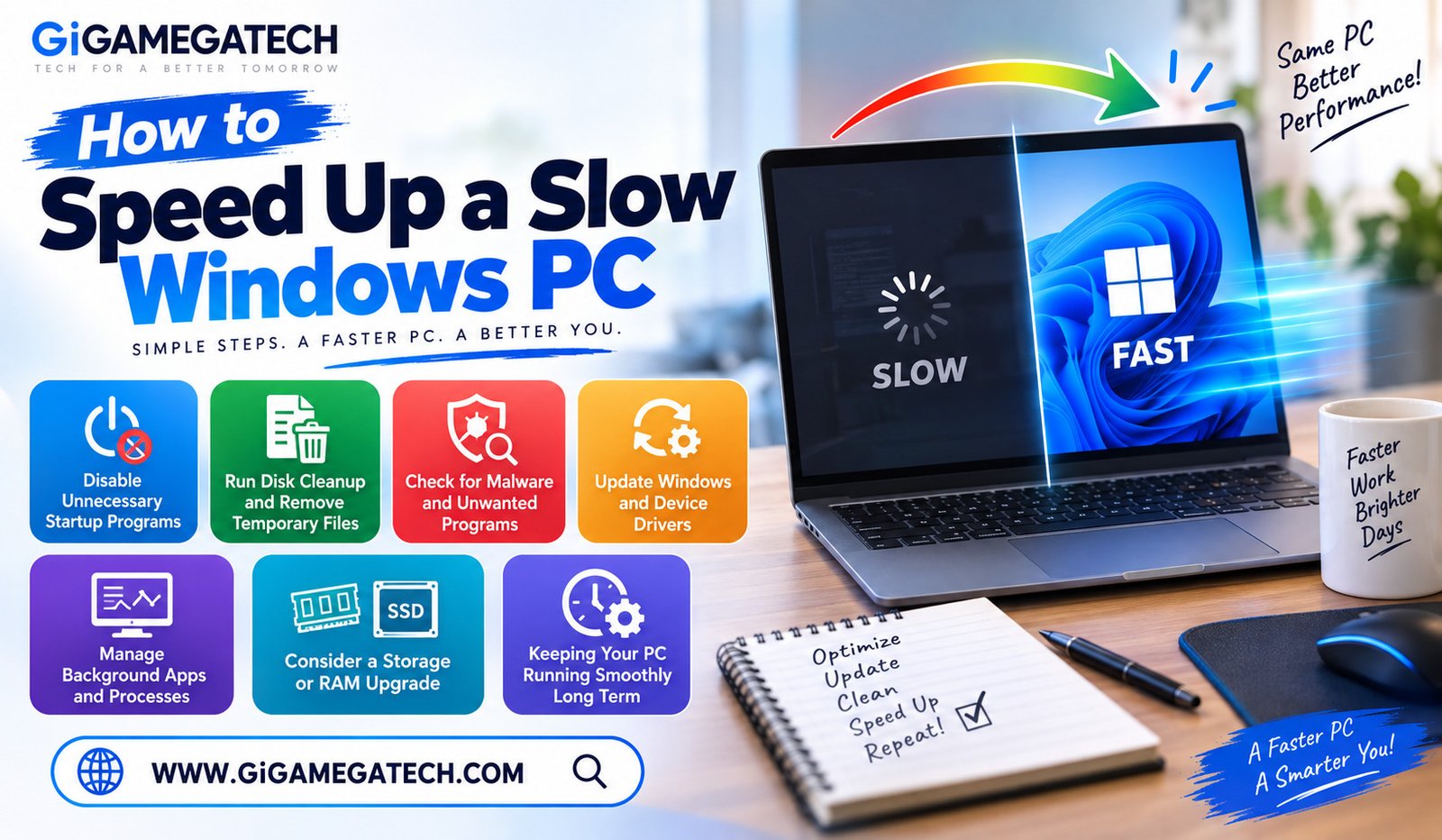
A computer that once felt fast rarely stays that way forever. Learning how to speed up a slow Windows PC can bring back a lot of that original responsiveness without buying new hardware.
Most slowdowns come from a predictable set of causes: too many startup programs, cluttered storage, and outdated drivers. This guide walks through practical fixes in order of how easy they are to try.
Why Windows PCs Slow Down Over Time
Every program installed adds a small amount of background activity, and over the years, that activity adds up significantly.
Windows itself also accumulates temporary files, cached data, and leftover fragments from uninstalled programs that never fully clear out.
A few common culprits behind slow performance include:
- Too many programs launching automatically at startup
- Accumulated temporary files and system clutter
- Outdated drivers no longer optimized for current software
- Malware or unwanted background programs
- Storage drives nearing full capacity
Disable Unnecessary Startup Programs
Many programs quietly set themselves to launch automatically when Windows starts, even ones you rarely use directly.
Each of these startup programs consumes memory and processing power immediately, slowing down your computer before you have even opened anything yourself.
Reviewing this list and disabling unnecessary entries is often the single fastest way to notice an improvement in startup and overall speed.
How to disable startup programs
- Open Task Manager and select the Startup tab
- Review the list and note each program’s impact rating
- Disable programs you do not need running automatically
Run Disk Cleanup and Remove Temporary Files
Windows includes a built-in Disk Cleanup tool designed specifically to remove temporary files, old system files, and other clutter safely.
Running this tool periodically clears space that often goes completely unnoticed, since these files hide in system folders most users never check manually.
Freeing up this space can also improve performance, since a nearly full drive tends to run noticeably slower than one with reasonable free space remaining.
How to run Disk Cleanup
- Search for Disk Cleanup in the Windows search bar
- Select your main drive, usually labeled C
- Check the boxes for temporary files and system files, then confirm
Check for Malware and Unwanted Programs
Malware and unwanted background programs are a common, often overlooked cause of a suddenly slow computer.
These programs frequently run silently in the background, consuming processing power and internet bandwidth without any clear indication to the user.
Running a full scan with a trusted antivirus program can catch and remove threats that manual troubleshooting alone would likely miss.
Steps to check for malware
- Run a full scan using Windows Security or a trusted antivirus tool
- Remove any unfamiliar programs found in your installed apps list
- Restart your computer after removing detected threats
Update Windows and Device Drivers
Outdated Windows versions and device drivers can quietly cause slowdowns, compatibility issues, and occasional instability.
Manufacturers regularly release updates that improve performance and fix bugs, particularly for graphics drivers and chipset drivers tied to your specific hardware.
Keeping both Windows and drivers updated ensures your system runs with the latest performance improvements available for your exact hardware.
How to check for updates
- Go to Settings, then Windows Update, and check for updates
- Visit your device manufacturer’s website for driver updates
- Restart your computer after installing any major updates
Manage Background Apps and Processes
Beyond startup programs, many apps continue running quietly in the background even after you think you have closed them.
Checking Task Manager’s Processes tab reveals exactly what is consuming memory and processor resources at any given moment.
Closing unnecessary background processes frees up resources immediately, often resulting in a noticeably smoother experience for whatever task you are actively working on.
How to manage background processes
- Open Task Manager and select the Processes tab
- Sort by CPU or memory usage to spot heavy consumers
- End tasks for programs you do not currently need running
Consider a Storage or RAM Upgrade
Sometimes software fixes only go so far, and the real bottleneck comes down to aging hardware struggling to keep up with modern demands.
Upgrading from a traditional hard drive to a solid-state drive often brings a dramatic, immediately noticeable speed improvement.
Adding more RAM can also help significantly if your computer struggles specifically with multitasking slowdowns, rather than general sluggishness.
Upgrade options to consider
- Replacing a hard drive with a solid-state drive
- Adding additional RAM if your system supports it
- Checking whether your specific laptop or desktop allows these upgrades
Keeping Your PC Running Smoothly Long Term
A one-time cleanup helps immediately, but the same clutter and slowdowns tend to creep back in without some regular maintenance.
Set a reminder to review startup programs and run Disk Cleanup every few months, rather than waiting until performance becomes frustrating again.
Staying current with Windows updates and running occasional malware scans will handle most of the ongoing prevention work without much extra effort.
Key Takeaways
- Best quick win: Disabling unnecessary startup programs
- Best for clutter: Running Disk Cleanup regularly
- Best for hidden slowdowns: Scanning for malware and unwanted programs
- Best for stability: Keeping Windows and drivers updated
- Best for active slowdowns: Managing background apps through Task Manager
- Best long-term fix: Upgrading to an SSD or adding more RAM
FAQs
Is it safe to disable startup programs?
Yes, disabling startup programs generally only prevents them from launching automatically and does not delete them.
Does Disk Cleanup delete anything important?
No, Disk Cleanup only targets temporary and unnecessary system files, not personal documents or photos.
How often should I check for malware?
Running a scan at least once a month is a reasonable habit for most users.
Will upgrading to an SSD really make a noticeable difference?
Yes, switching from a hard drive to an SSD typically brings a significant, easily noticeable speed improvement.
Do driver updates actually affect performance?
Yes, particularly graphics and chipset drivers, which are often optimized for better performance over time.
Conclusion
Learning how to speed up a slow Windows PC usually comes down to a mix of simple software fixes and, occasionally, a worthwhile hardware upgrade. Disabling startup programs, cleaning up storage, checking for malware, and keeping drivers updated will resolve most everyday slowdowns. Build these checks into a regular routine, and your PC stays noticeably more responsive over time.