






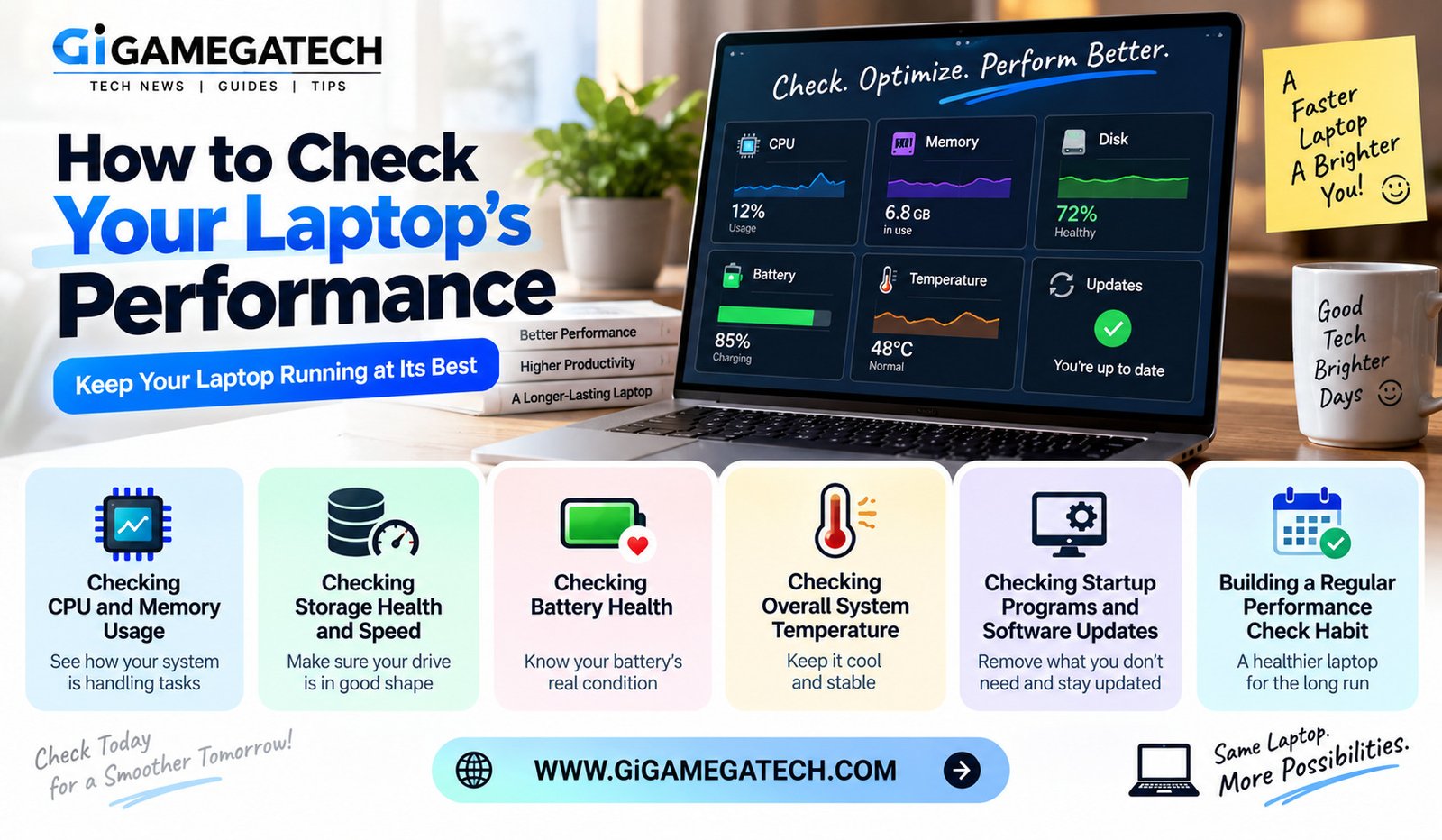
A laptop that feels slower than before is not always something you need to guess about. Learning how to check your laptop’s performance gives you real numbers instead of a vague feeling that something is wrong. In this article, we will walk through simple checks anyone can run using built-in tools, no extra downloads required.
Most performance problems trace back to one of a handful of common causes. Once you know where to look, figuring out what is actually slowing your laptop down usually takes only a few minutes.
Why Checking Performance Matters
A slowdown can come from several different causes, and guessing rarely fixes the actual problem. You might spend an afternoon closing random apps or reinstalling software, only to find the real issue was something else entirely, like a nearly full hard drive or an overheating processor.
Checking performance directly helps you figure out whether the issue is memory, storage, temperature, or something else entirely. This saves time compared to randomly trying fixes one after another, and it also helps you avoid unnecessary purchases, like a new laptop, when a smaller fix would have solved the problem.
Most of these checks take just a few minutes and do not require installing extra software. Windows and macOS both include built-in tools capable of showing exactly what your laptop is doing at any given moment.
Checking CPU and Memory Usage
Your processor and memory usage are often the first places to look when a laptop feels sluggish. A single overloaded app can drag down the entire system, even while everything else sits idle.
Using Task Manager
Task Manager, built into Windows, shows exactly how much processing power and memory each running app is using. High usage from a single app is often the real cause of a slowdown, and Task Manager makes that app easy to spot within seconds.
Watching for Background Processes
Some apps continue running in the background even after you close their main window. These can quietly use up resources without an obvious cause, since nothing visible on your screen suggests they are still active. Update checkers, cloud sync tools, and browser extensions are common culprits.
What to Do With What You Find
Checking Task Manager first is usually the fastest way to spot an obvious performance drain. If one app consistently shows unusually high CPU or memory use, restarting it, updating it, or removing it altogether often resolves the slowdown without needing to touch anything else on the system.
Checking Storage Health and Speed
Storage problems can slow down an entire system, even when the processor and memory look fine. A struggling drive affects nearly everything, from opening files to launching applications.
Consider checking these storage details:
- Available free space, since a nearly full drive can slow down performance
- Whether the drive is a traditional hard drive or a faster solid-state drive
- Built-in disk health tools that flag early warning signs of failure
- File fragmentation, which mainly affects older hard drives rather than solid-state drives
Running a quick storage check every few months can catch a failing drive before it causes bigger problems. A drive nearing full capacity, in particular, often causes a much bigger slowdown than most people expect, since the system needs free space to manage temporary files and virtual memory efficiently.
Checking Battery Health
A laptop’s performance is not only about speed. Battery health plays a big role in daily usability too, especially if you rely on your laptop away from a power outlet.
Built-In Battery Reports
Windows can generate a detailed battery report showing current capacity compared to the original design capacity. A big gap between the two suggests aging battery health, and this gap tends to widen gradually over years of regular use.
Charging Habits Over Time
Consistently charging to 100 percent and letting the battery drain fully can wear it down faster than more moderate charging habits. Keeping the battery within a more moderate range during daily use tends to preserve its long-term capacity better than repeated full charge cycles.
Making Sense of the Numbers
Reviewing your battery report occasionally helps you understand whether reduced battery life is normal aging or a sign of a bigger issue. A gradual decline over a couple of years is expected, while a sudden drop in a short period is worth investigating further, since it may point to a specific hardware fault.
Checking Overall System Temperature
Heat can quietly affect performance, especially during demanding tasks like video editing or gaming. When a laptop runs too hot, it often slows itself down automatically to protect its internal components.
Signs of Overheating
A laptop that becomes very hot to the touch, or whose fan runs constantly at high speed, may be struggling with heat management. Unexpected shutdowns during intensive tasks are another common sign that temperature has become a real problem rather than a minor annoyance.
Simple Fixes to Try First
Cleaning dust from vents and using the laptop on a hard, flat surface can improve airflow significantly without any technical steps. Soft surfaces like beds or couches tend to block vents underneath the laptop, trapping heat that would otherwise escape easily.
Why This Matters Long Term
Addressing overheating early can prevent long-term damage to internal components. Components exposed to consistently high temperatures tend to wear out faster, which can shorten the overall lifespan of the laptop well beyond the immediate performance dip you might notice day to day.
Checking Startup Programs and Software Updates
Beyond the checks above, two smaller factors often contribute to a laptop feeling slower than it should, especially right after you turn it on.
Reviewing Startup Programs
Many applications quietly add themselves to your laptop’s startup sequence, launching automatically every time you turn the machine on. A long list of startup programs can noticeably delay how quickly your laptop becomes usable after booting.
Checking for Pending Updates
Outdated system software and drivers occasionally cause slowdowns that a routine update resolves. Checking for pending updates, both for the operating system and for individual apps, is a quick step that sometimes clears up performance issues that otherwise seem unexplained.
Trimming What You Do Not Need
Disabling unnecessary startup programs through your system settings, and keeping software reasonably current, adds up to a noticeably smoother experience over time, particularly on older laptops with more limited processing power.
Building a Regular Performance Check Habit
None of these checks need to happen constantly, but building a light routine around them makes it far easier to catch problems early, before they become serious.
A Simple Routine to Follow
- Glance at Task Manager whenever your laptop feels unusually slow
- Check storage space and drive health every few months
- Review your battery report every couple of months if you rely on battery life often
- Keep an eye on temperature and fan noise during demanding tasks
Treating these checks as routine maintenance, rather than something you only do once something breaks, keeps small issues from turning into bigger, more expensive problems down the road.
Key Takeaways
- First check for slowdowns: Task Manager for CPU and memory usage.
- Most overlooked storage issue: A nearly full drive reducing overall speed.
- Most useful battery check: A built-in battery health report.
- Most common hardware issue: Overheating due to blocked vents or heavy use.
- Often-missed factor: Too many startup programs slowing down boot time.
- Best overall habit: Running these checks every few months, not just when problems appear.
FAQs
How do I open Task Manager on Windows?
Task Manager can be opened by pressing Ctrl, Shift, and Escape together.
Is a full hard drive really a performance problem?
Yes, a nearly full drive can noticeably slow down a system, especially on older laptops.
Can I check battery health without extra software?
Yes, Windows includes a built-in command to generate a detailed battery health report.
Does overheating permanently damage a laptop?
Repeated overheating over a long period can shorten the lifespan of internal components.
How often should I check my laptop’s performance?
Checking every few months is a reasonable habit, or sooner if you notice a sudden slowdown.
Do startup programs really make a noticeable difference?
Yes, a long list of startup programs can meaningfully delay how quickly a laptop becomes usable after turning it on.
Conclusion
Knowing how to check your laptop’s performance takes the guesswork out of dealing with a slowdown. A quick look at CPU usage, storage health, battery condition, temperature, and startup programs covers most common issues. Running these checks regularly, as part of a light ongoing habit, helps catch small problems before they turn into bigger ones.