






Introduction
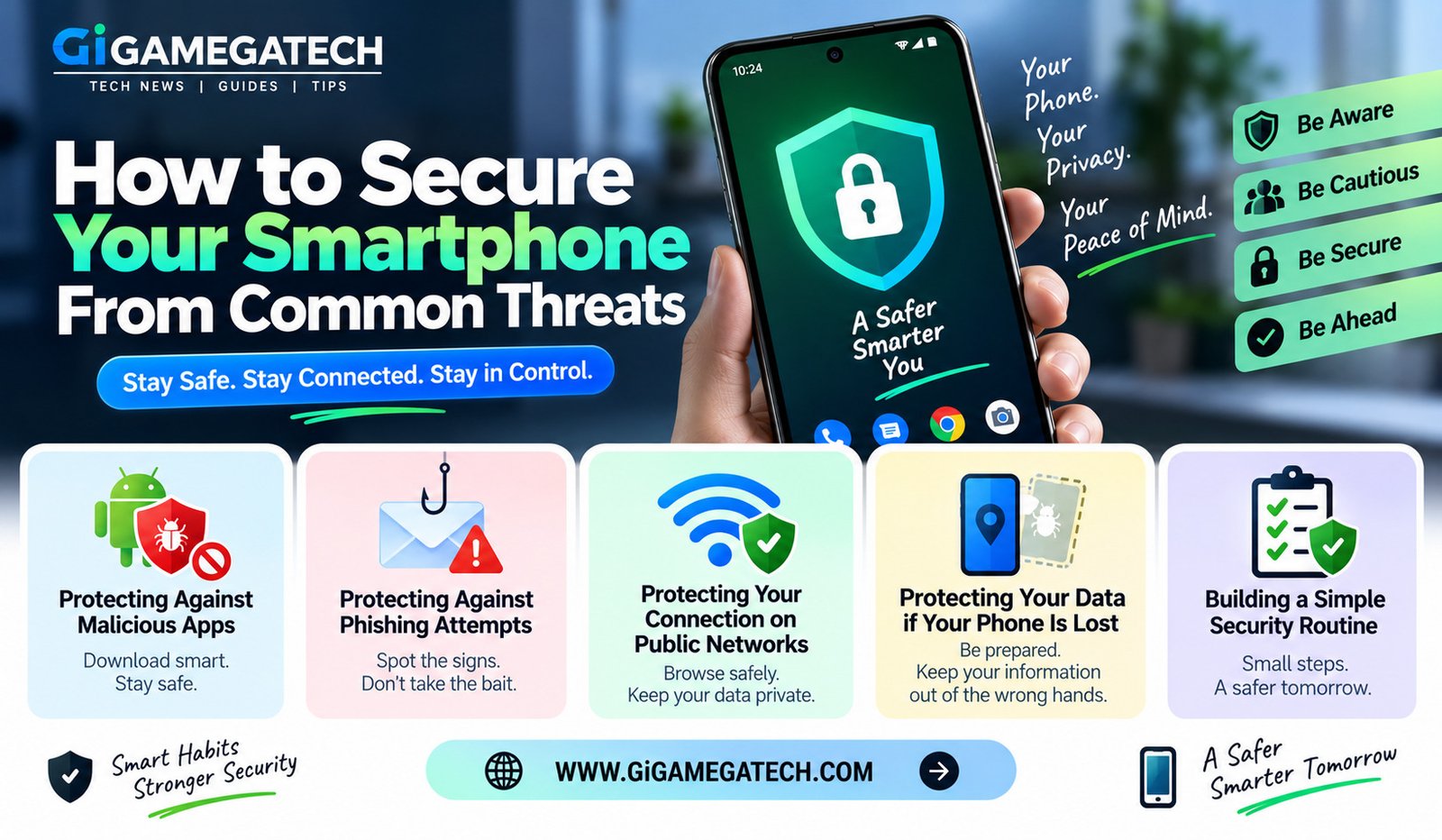
Your smartphone holds more personal information than almost anything else you own. Knowing how to secure your smartphone from common threats can prevent a lot of stress before it ever starts. In this article, we will cover the most common risks and simple steps to guard against each one.
Why Smartphones Are a Common Target
Phones combine banking apps, personal messages, photos, and work email in one small device. That makes them an appealing target for anyone looking to steal information.
Many attacks do not rely on advanced hacking skills at all. They rely on small mistakes, like installing an unfamiliar app or clicking a suspicious link.
The good news is that most threats follow predictable patterns. Once you recognize these patterns, avoiding them becomes a matter of habit rather than constant vigilance.
Understanding the most common threats makes it much easier to avoid them, and it removes a lot of the guesswork around which precautions actually matter.
A few reasons phones attract attention
- They store passwords, payment details, and personal messages in one place
- People check phones frequently, often without much scrutiny
- Many users skip basic security settings out of convenience
- A single compromised phone can expose several connected accounts at once
Protecting Against Malicious Apps
Not every app on an app store is safe, even when it looks legitimate at first glance. Some apps disguise their real purpose behind a simple design or a familiar-sounding name.
Sticking to Official App Stores
Downloading apps only from official stores, rather than third-party websites, significantly reduces the risk of installing something harmful.
Official stores review apps before publishing them, which does not guarantee complete safety, but it does filter out a large portion of obviously malicious software.
Checking App Permissions
Before installing an app, it helps to check what permissions it requests. An app with no clear reason to access your contacts or location deserves a second look.
A simple flashlight app, for example, has no real reason to request access to your microphone or contacts list. Requests like these are a common warning sign worth taking seriously.
Reviewing Installed Apps Periodically
Beyond new installs, it helps to review apps already sitting on your phone every so often. Old apps you no longer use still retain whatever permissions you originally granted them.
Removing unused apps reduces the number of potential entry points on your device, even if none of them were ever actively malicious.
Being cautious with new or unfamiliar apps, and reviewing old ones occasionally, covers most of this entire category of threat.
Protecting Against Phishing Attempts
Phishing attacks try to trick you into giving up personal information, often through fake messages or emails designed to look convincing at a glance.
These attempts have grown more sophisticated over time, sometimes closely copying the design and tone of real companies people already trust.
Watch for these common warning signs:
- Urgent language pressuring you to act immediately
- Links that do not match the sender’s claimed identity
- Requests for passwords or payment details over text or email
- Messages claiming to be from a bank or delivery service you did not expect
- Slightly altered logos, spelling mistakes, or unusual formatting
Verifying Suspicious Messages Safely
If a message feels off, it usually is. Verifying directly through an official app or website is safer than clicking a link in the message itself.
Instead of tapping a link from a suspicious text, open your banking app directly or visit the company’s website separately to check for any real notifications.
Reporting Phishing Attempts
Most email providers and phone carriers offer a simple way to report suspected phishing messages, which helps improve filtering for everyone over time.
Taking a moment to report a message, rather than simply deleting it, adds a small but meaningful layer of collective protection against repeated attempts.
Protecting Your Connection on Public Networks
Public Wi-Fi is convenient, but it comes with real risks if left unprotected, particularly on networks shared with strangers.
Avoiding Sensitive Tasks on Public Wi-Fi
Logging into banking apps or entering payment details over public Wi-Fi increases the risk of your data being intercepted by someone else on the same network.
If a sensitive task cannot wait, switching to your phone’s cellular data connection instead is generally a safer alternative.
Using a VPN When Needed
A VPN encrypts your connection, adding a layer of protection when you have no choice but to use a public network for something important.
This encryption makes it significantly harder for anyone else nearby to view your browsing activity or login details, even on an unsecured connection.
Turning Off Auto-Connect Features
Many phones automatically reconnect to previously used Wi-Fi networks, including ones with generic or common names that attackers sometimes recreate deliberately.
Disabling auto-connect settings, or at least reviewing your saved network list occasionally, prevents your phone from silently joining a potentially fake network.
Treating public Wi-Fi as inherently less secure, even at trusted-looking locations, is a smart default habit worth building early.
Protecting Your Data if Your Phone Is Lost
Even with careful habits, phones do get lost or stolen sometimes. Preparing for that possibility in advance makes a stressful moment far more manageable.
Enabling Remote Lock and Erase
Both major mobile operating systems offer a way to locate, lock, or erase a phone remotely, but only if it was set up beforehand.
Take a few minutes now to confirm this feature is active, rather than discovering it was never turned on after a phone actually goes missing.
Setting a Strong Lock Screen
A strong lock screen, whether a passcode, fingerprint, or face recognition, is your first line of defense if a phone ends up in the wrong hands.
Avoid simple, easily guessed passcodes, and consider enabling biometric options as an added layer alongside a solid backup passcode.
Keeping Regular Backups
Regular backups mean that even if a phone is gone for good, your photos, contacts, and important files are not lost along with it.
Most phones support automatic cloud backups, removing the need to remember to back up manually on a regular schedule.
Setting up remote lock and erase ahead of time, alongside a strong lock screen and regular backups, turns a stressful situation into a manageable one.
Building a Simple Security Routine
None of these steps require constant effort once they are set up correctly. Most of the work happens once, during initial setup, rather than as an ongoing daily task.
Set aside a single afternoon to review app permissions, confirm remote lock and erase is active, and check that backups are running automatically.
From there, staying cautious with unfamiliar links and unexpected messages covers most of the remaining risk you are likely to encounter day to day.
Key Takeaways
- Most common entry point for threats: Malicious apps from unofficial sources
- Most common trick used against users: Phishing messages with urgent language
- Highest risk activity on public Wi-Fi: Logging into banking or payment apps
- Most important preventive setting: Remote lock and erase, enabled in advance
- Best long-term habit: Keeping regular backups of your important data
FAQs
Are third-party app stores always unsafe?
Third-party app stores carry more risk since they do not always screen apps as carefully as official stores.
How can I tell if a text message is a phishing attempt?
Urgent language, mismatched links, and requests for personal information are common signs of a phishing attempt.
Is it safe to check email on public Wi-Fi?
Checking email is generally lower risk than banking, though using a VPN adds extra protection either way.
What should I do immediately after losing my phone?
Using remote lock or erase features right away, if enabled, is the most effective immediate step after losing a phone.
Do I need antivirus software on my smartphone?
Antivirus software is optional for most users who stick to official app stores and follow basic safety habits.
Conclusion
Learning how to secure your smartphone from common threats mostly comes down to a few consistent habits. Careful app choices, caution around phishing attempts, care on public Wi-Fi, and a plan for a lost device cover most real risks. Building these habits now is far easier than dealing with the aftermath of a security problem later.