
Introduction
Most people never touch their phone’s security settings after setup. A few of the Android security settings you should enable take only minutes but make a real difference. In this article, we will go through the most important settings, why they matter, and how they protect your data day to day.
Why Security Settings Deserve Attention
A phone holds more personal information than most people realize. Photos, messages, banking apps, and saved passwords all live in one place.
Default settings are usually reasonable, but they are not always the strongest option available. A few small changes can close gaps that most users never think about.
Taking fifteen minutes to review these settings is a small price for real peace of mind.
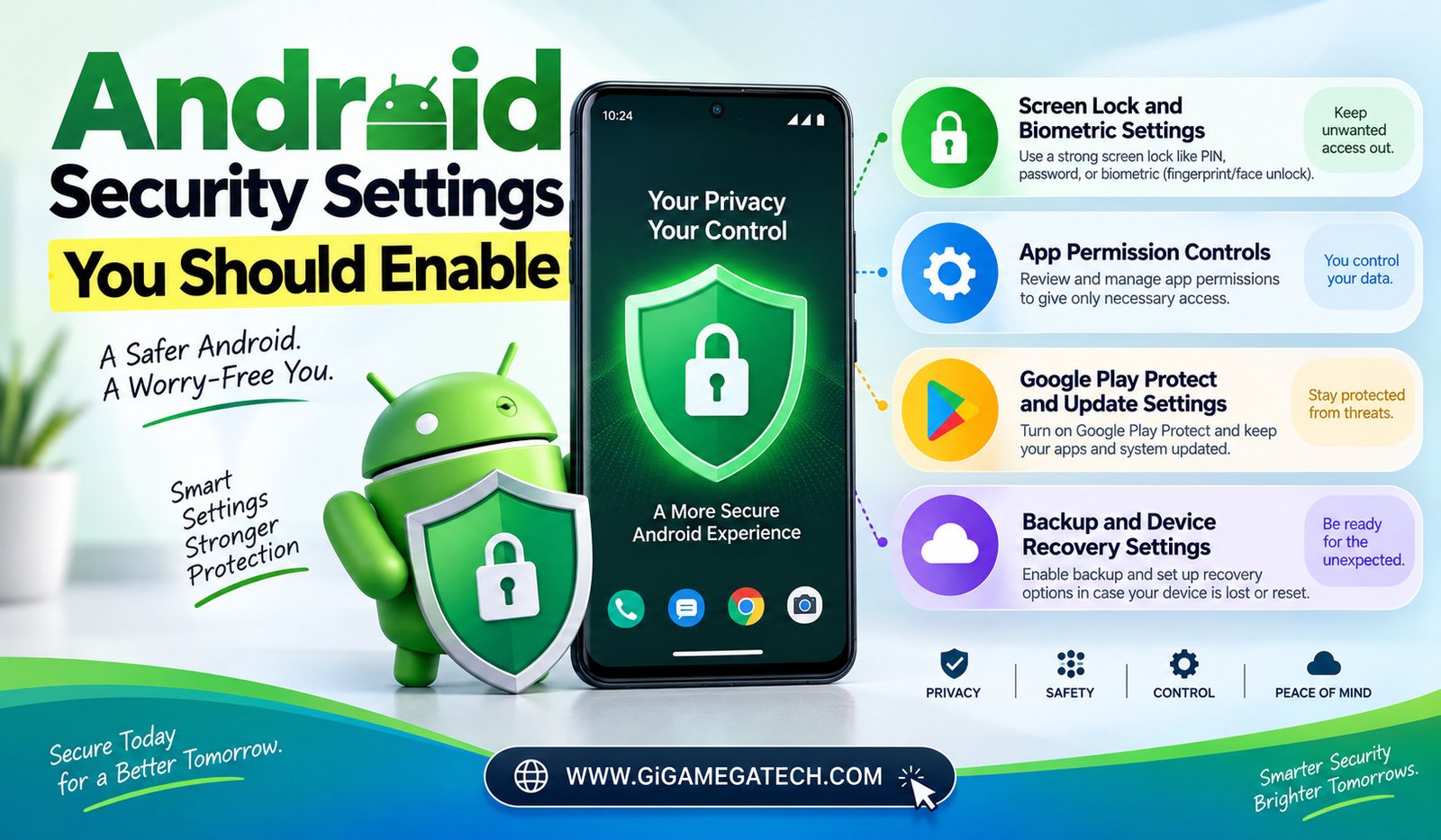
Screen Lock and Biometric Settings
Your lock screen is the first line of defense against anyone who picks up your phone.
Choosing a Strong Unlock Method
A PIN or password is stronger than a simple pattern, since patterns can sometimes be guessed from smudges on the screen.
Enabling Fingerprint or Face Unlock
Biometric unlock methods add convenience without weakening security, since they still require a backup PIN as well.
A longer PIN is generally safer than a short one, so consider using six digits instead of four where possible.
App Permission Controls
Apps often request more access than they actually need.
Review these permission types regularly:
- Location access, especially for apps that do not need it constantly
- Microphone and camera access for apps with no clear reason to use them
- Contact list access for apps unrelated to messaging or calling
- Background data usage for apps you rarely open
Most Android phones let you review and revoke these permissions individually from the settings menu, without needing to uninstall the app.
Google Play Protect and Update Settings
Keeping your phone updated is one of the simplest security steps available.
Google Play Protect
This built-in feature scans apps for suspicious behavior before and after installation. Making sure it stays turned on adds a layer of protection against harmful apps.
System and Security Updates
Installing system updates promptly closes security gaps that developers have already identified and fixed.
Automatic updates are worth enabling if your data plan allows it, since delayed updates leave known issues unpatched for longer.
Backup and Device Recovery Settings
Security is not only about blocking access. It also means being ready if your phone is lost or stolen.
Enabling Find My Device
This setting lets you locate, lock, or erase your phone remotely if it goes missing. It only works if it was turned on beforehand.
Regular Cloud Backups
Backing up contacts, photos, and settings means you can recover your data even if the physical phone is gone for good.
The peace of mind from remote lock and erase options makes this one of the more important settings on the entire list.
Key Takeaways
- Strongest lock screen option: A PIN or password over a pattern.
- Most overlooked setting: Reviewing individual app permissions.
- Most important background protection: Keeping Google Play Protect enabled.
- Most important update habit: Installing system updates promptly.
- Most important recovery step: Turning on Find My Device before you need it.
FAQs
Is fingerprint unlock safer than a PIN?
Fingerprint unlock is convenient but still relies on a backup PIN, so both should be set up together.
Should I allow apps to always access my location?
Location access should generally be limited to “while using the app” unless there is a clear reason for constant access.
Does Google Play Protect replace the need for antivirus apps?
Google Play Protect covers most basic protection needs, though some users still choose additional antivirus apps for extra peace of mind.
What happens if I lose my phone without Find My Device enabled?
Without Find My Device enabled beforehand, locating or remotely erasing a lost phone becomes much harder.
How often should I review my app permissions?
Reviewing app permissions every few months is a reasonable habit for most users.
Conclusion
Enabling the right Android security settings does not take long, but it meaningfully lowers your risk. A strong lock screen, careful app permissions, regular updates, and a working backup plan cover most of what matters. Taking a few minutes now can save a lot of stress later.