





Introduction
Most people install a new operating system, poke around for ten minutes, and then go back to using it exactly like the last one. That’s a shame, because Windows 11 is full of small tools that quietly change how smooth your day-to-day computing feels most of them just aren’t sitting in plain sight. This guide walks through the features actually worth carving out a few minutes to learn, organized by what kind of problem they solve.
Why Windows 11 Deserves a Second Look
When Windows 11 first launched, most of the attention went to what you could see right away: a centered taskbar, softened window corners, a generally calmer visual style. Those cosmetic changes were the easy headline, but they’re not where the real value sits.
The features that actually change how you work tend to live a layer deeper — in hover menus, settings panels, and keyboard shortcuts that never announce themselves. None of it requires a tutorial or a manual. It just requires a few minutes of curiosity, which is often all it takes to discover you’ve been doing something the hard way for months.
Best Features for Everyday Productivity
A handful of small tools can save real time once they become part of your muscle memory.
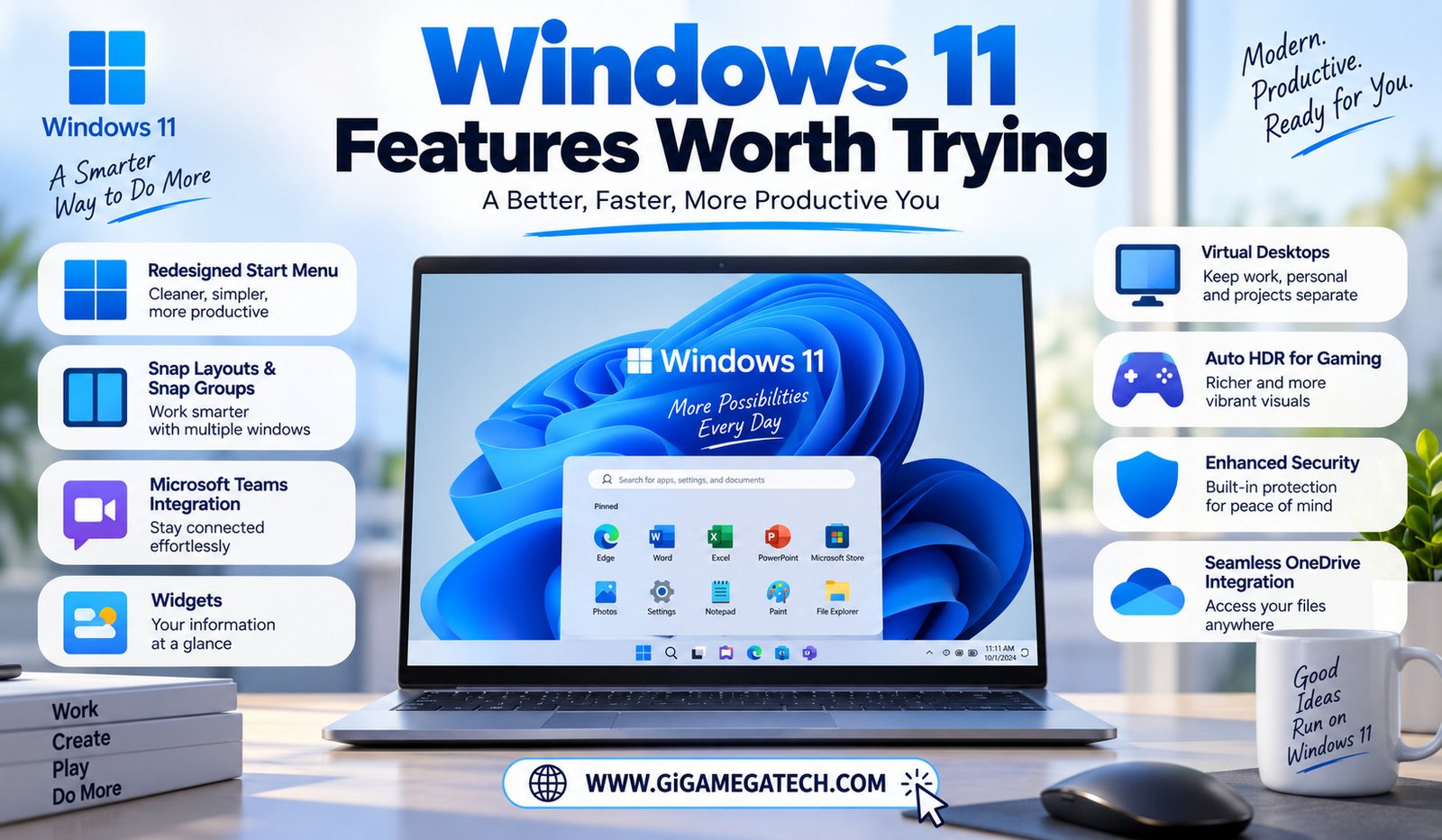
Snap Layouts are the standout here. Hover your cursor over a window’s maximize button, and a small grid of layout options pops up — split the screen in half, quarter it into four panes, or arrange it however suits the task at hand. It replaces the old habit of manually dragging window edges around until things roughly line up, and once it becomes a reflex, going back to the manual method feels genuinely tedious.
The widgets panel serves a narrower but still useful purpose. Tucked just off the left edge of the screen, it surfaces weather, headlines, and calendar events at a glance, without the ceremony of opening a browser tab, waiting for a page to load, and closing it again thirty seconds later. It’s a small thing, but small frictions add up over a full workday, and removing one of them is worth the two minutes it takes to set up.
Neither feature is complicated. The only real barrier is that nobody goes looking for them — Snap Layouts, in particular, is easy to miss because it only appears on hover, and most people never linger long enough over that button to notice.
Best Features for Multitasking
Windows 11 handles the chaos of multiple open tasks and workspaces more gracefully than earlier versions did, and a few built-in tools are worth building into your routine:
- Virtual desktops, which let you separate work and personal tasks onto entirely different screens on the same machine
- Snap Groups, which remember a saved window arrangement so you can restore it instantly instead of rebuilding it by hand
- Task View, which gives a visual overview of everything currently open across every desktop
- Focus sessions, which quiet down notifications during stretches of deep work
Virtual desktops deserve special mention. Anyone who’s ever tried to keep a dozen work-related tabs and windows separate from personal browsing on a single desktop knows how quickly that setup turns into visual noise. Virtual desktops solve that cleanly — one space for spreadsheets and email, another for whatever you’re doing in your downtime, switchable with a keyboard shortcut instead of a hunt through the taskbar.
Snap Groups complements this well. If you regularly return to the same three-window arrangement — say, a browser, a notes app, and a chat window — Snap Groups remembers that layout and restores it in one motion instead of making you rebuild it from scratch every time you reopen your laptop.
Best Features for Personalization
Beyond productivity, Windows 11 gives you more room to make the interface feel like it’s actually yours, rather than a default install you’re just tolerating.
Custom themes bundle color schemes, system sounds, and background images into a single cohesive set, so you’re not adjusting each element separately and hoping they end up looking coordinated. Pick a theme once, and the whole visual identity of your desktop shifts together.
Taskbar customization goes a step further by letting you choose which icons actually show up down there and how the whole bar is aligned — left-aligned for something closer to the classic Windows feel, or centered for the newer default look. It sounds cosmetic, and in a sense it is, but a taskbar cluttered with icons you never use adds a small tax to every glance down at your screen. Clearing that out tends to matter more to daily comfort than people expect going in.
Best Features for Security
Windows 11 raised its baseline hardware and security requirements compared to earlier versions, and a few built-in tools take direct advantage of that higher floor.
Windows Hello is the most immediately noticeable one. On hardware that supports it — a compatible camera or fingerprint reader — it lets you sign in with your face or a fingerprint instead of typing a password every single time you unlock your machine. It’s a small convenience multiplied across dozens of unlocks a day, and it happens to be more secure than most passwords people actually choose for themselves.
The Windows Security dashboard rounds things out by pulling firewall status, virus protection, and general device health into a single, unified view — no separate antivirus subscription required to get a clear read on where things stand. It’s not a feature you need to check daily, but making it a habit to glance at every so often is a cheap way to catch a warning before it turns into an actual problem.
Key Takeaways
| If you want… | Try this |
| Faster window arranging | Snap Layouts |
| Cleaner task separation | Virtual desktops and Snap Groups |
| A more personal desktop | Custom themes and taskbar settings |
| Faster, password-free sign-in | Windows Hello (on supported hardware) |
| Peace of mind on security | The Windows Security dashboard |
FAQs
Do I need special hardware to use Windows Hello?
Yes it requires a compatible fingerprint reader or camera, which isn’t built into every device.
Are virtual desktops available on all Windows 11 editions?
Yes, virtual desktops come standard on every mainstream Windows 11 edition, with no extra software required.
Can I turn off the widgets panel if I don’t use it?
Yes it can be disabled from the taskbar settings menu whenever you’d rather not see it.
Is Snap Layouts available on older Windows versions?
No, it was introduced with Windows 11 and isn’t available on earlier releases.
Will these features slow down an older computer? Generally not. Most of them are lightweight and shouldn’t cause a noticeable slowdown on a reasonably capable machine.
Conclusion
None of these features require a steep learning curve or a change in how you fundamentally use your computer. Snap Layouts speeds up how you arrange windows, virtual desktops keep separate parts of your life from bleeding into each other on the same screen, personalization settings make the whole experience feel less like a rental, and the built-in security tools quietly watch your back without asking for a subscription. Spending twenty minutes exploring settings you already own is one of the easiest upgrades available to anyone already running Windows 11 — no new hardware, no new software, just a closer look at what’s already there.