Introduction
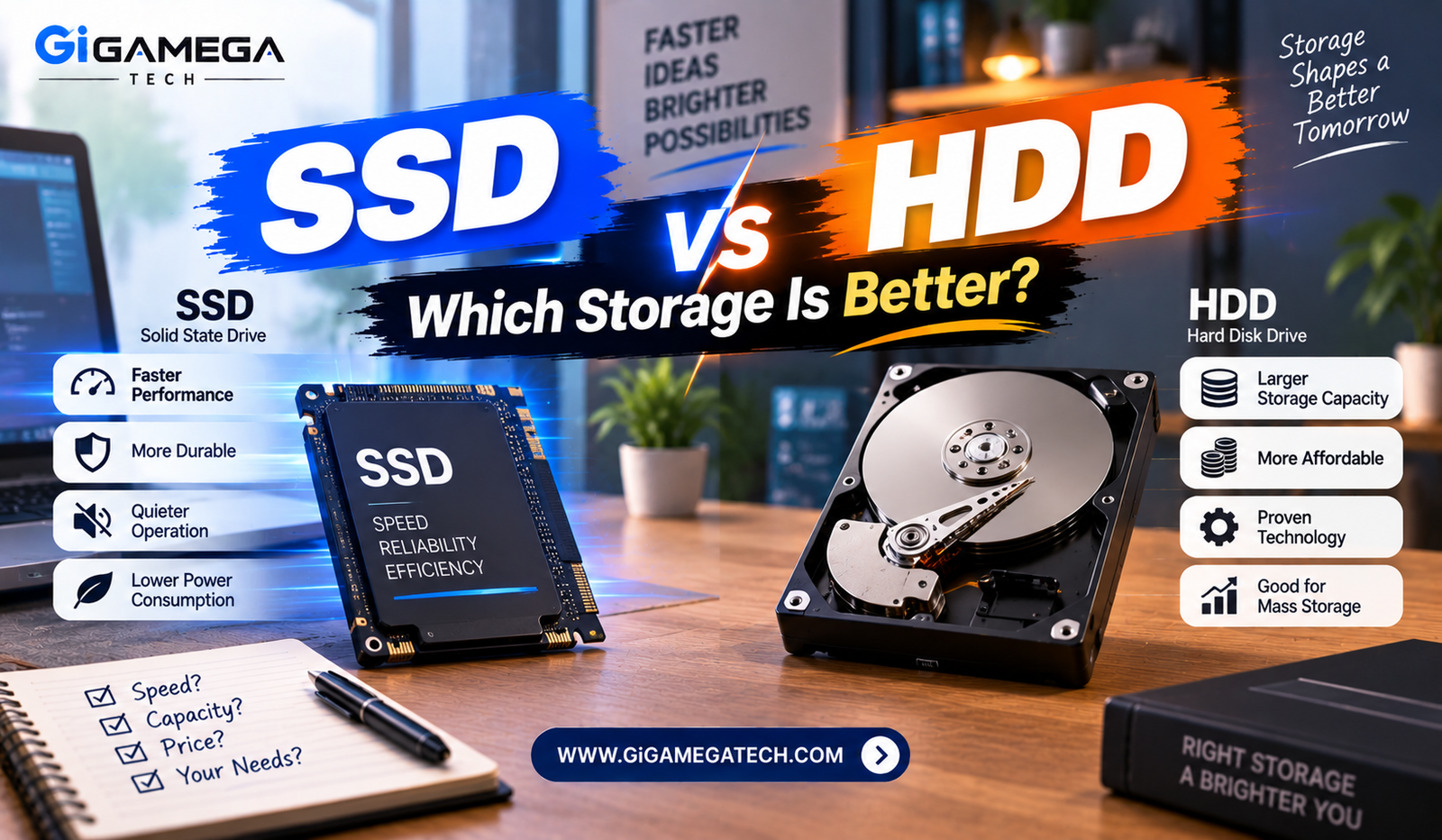
Picking storage for a new computer often comes down to one basic question: SSD vs HDD, which storage is actually better for you? Both technologies store your files, but they work in completely different ways, and each comes with real tradeoffs. This guide breaks down the differences across speed, durability, cost, and everyday use, so you can match the right drive to your actual needs.
Neither option is universally better. The right choice depends on what you plan to store, how fast you need to access it, and how much you are willing to spend per gigabyte.
What Is an HDD?
A Hard Disk Drive, or HDD, stores data on spinning magnetic disks called platters. A mechanical arm moves across the spinning platter to read and write information, similar to how a record player reads a vinyl record.
Basic Characteristics
- Data stored magnetically on physical spinning disks
- A mechanical read and write head that moves across the platter
- Widely available in large capacities, often reaching 32 to 64 terabytes
- Long-established technology with a lower cost per gigabyte
Because HDDs rely on moving parts, they take longer to locate and retrieve data compared to drives with no mechanical components.
What Is an SSD?
A Solid State Drive, or SSD, stores data using flash memory chips instead of spinning disks. There are no moving parts inside, which changes almost every aspect of how the drive performs.
Basic Characteristics
- Data stored electronically on flash memory chips
- No moving mechanical components
- Faster read and write speeds compared to traditional hard drives
- Generally more expensive per gigabyte, especially at higher capacities
Because SSDs access data electronically rather than mechanically, they tend to feel dramatically faster in everyday use, from booting up to opening large files.
Speed and Boot Times
Speed is where the difference between these two storage types becomes most obvious to an everyday user.
Typical Performance Differences
- HDDs typically read and write at around 100 to 200 MB per second
- SSDs range from about 500 MB per second up to several thousand MB per second on faster NVMe models
- A computer with an HDD often takes 30 seconds to a full minute to boot
- A computer with an SSD typically boots in 10 to 15 seconds
This speed gap carries over into everyday tasks as well. Opening large programs, loading game levels, and transferring big files all feel noticeably faster on an SSD.
Durability and Lifespan
Physical durability differs significantly between the two technologies, largely because of the moving parts inside an HDD.
Why SSDs Tend to Last Longer
- No moving parts means less wear from mechanical use over time
- Better resistance to shock and physical damage if the device is dropped
- Modern SSDs often last five to ten years or more under typical use
- Built-in maintenance features help preserve performance over the drive’s lifespan
Where HDDs Fall Short
- Spinning platters wear down gradually with continued use
- Mechanical parts make HDDs more vulnerable to damage from drops or shock
- Average lifespan tends to run three to five years under regular use
For anyone storing data they cannot afford to lose, this difference in physical reliability is worth factoring into the decision.
Capacity and Cost per Gigabyte
While SSDs win on speed and durability, HDDs still hold a clear advantage in one specific area: storing large amounts of data affordably.
Where HDDs Still Make Sense
- Lower cost per gigabyte, especially at higher capacities
- Widely available at capacities well beyond what most SSDs offer at a similar price
- A practical choice for backups, archives, and media libraries
Where SSD Costs Add Up
- Prices climb quickly for capacities beyond two terabytes
- Still a better value for active files, applications, and your operating system
- Cost has dropped significantly over the years, but a large gap remains at high capacities
Many people solve this tradeoff by pairing both drive types in the same system, an SSD for active use and an HDD for bulk storage.
Noise, Heat, and Power Use
Beyond raw performance numbers, the physical differences between these drives affect daily comfort and energy use as well.
Everyday Differences
- HDDs produce audible noise while spinning and seeking data
- SSDs run completely silent, since there are no moving parts to generate sound
- HDDs generate more heat due to mechanical movement, which can shorten their lifespan
- SSDs use less power overall, which helps extend battery life on laptops
For laptop users especially, the power efficiency of an SSD contributes directly to longer battery life throughout the day.
SSD vs HDD Comparison Table
| Feature / Criteria | Hard Disk Drive (HDD) | Solid State Drive (SSD) |
| Data Storage Method | Spinning magnetic disks (platters) & moving mechanical head | Flash memory chips (no moving parts) |
| Read / Write Speed | 100 to 200 MB per second | 500 MB/s up to several thousand MB/s (NVMe) |
| Boot Time | 30 seconds to 1 minute | 10 to 15 seconds |
| Lifespan | 3 to 5 years under regular use | 5 to 10+ years under typical use |
| Durability & Shock Resistance | Vulnerable to damage from drops or shock | Better resistance to physical shock and drops |
| Capacity & Cost | Lower cost per GB; widely available up to 32–64 TB | Higher cost per GB; prices climb past 2 TB |
| Noise & Heat | Produces audible noise; generates more heat | Runs completely silent; generates less heat |
| Power Consumption | Uses more power overall | Uses less power (extends laptop battery life) |
| Best Use Cases | Backups, archives, and large media libraries on a budget | Operating systems, active programs, gaming, and heavy workloads |
Which One Should You Choose?
The right choice depends entirely on how you plan to use the storage rather than which technology sounds more modern.
Choose an SSD If You Need
- Fast boot times and quick application loading
- Reliable performance for gaming, video editing, or other demanding tasks
- Better physical durability for a laptop that travels frequently
Choose an HDD If You Need
- Large storage capacity at the lowest possible cost
- A dedicated drive for backups, archives, or rarely accessed media files
- Bulk storage where speed is not a priority
A Middle Ground Worth Considering
Many modern computers use both drive types together. An SSD handles the operating system and frequently used programs, while an HDD stores large media files, backups, or archives at a lower cost.
Key Takeaways
- Technology: HDDs use spinning magnetic disks, while SSDs use flash memory with no moving parts.
- Speed: SSDs boot and load files significantly faster than HDDs.
- Durability: SSDs generally last longer and resist physical damage better.
- Cost: HDDs remain cheaper per gigabyte, especially at large capacities.
- Noise and heat: SSDs run silently and generate less heat than HDDs.
- Best use case for SSD: Operating systems, active programs, and performance-heavy tasks.
- Best use case for HDD: Backups, archives, and large media libraries on a budget.
Frequently Asked Questions
Can I use both an SSD and an HDD in the same computer?
Yes, many desktop computers and some laptops support installing both drive types together.
Is an SSD worth the extra cost for a basic home computer?
Yes, even a basic SSD noticeably improves boot times and everyday responsiveness compared to an HDD.
Do SSDs ever fail or wear out?
Yes, SSDs can eventually wear out from repeated write cycles, though this typically takes many years under normal use.
Which storage type is better for gaming?
SSDs are generally better for gaming, since they reduce load times and minimize stuttering during gameplay.
Is it worth upgrading an old computer from HDD to SSD?
Yes, upgrading to an SSD is one of the most noticeable performance improvements you can make to an older computer.
Conclusion
Deciding between SSD vs HDD ultimately comes down to matching the drive to your priorities. If speed, durability, and quiet operation matter most, an SSD is the clear choice. If you need large amounts of affordable storage for backups or archives, an HDD still holds real value. For many users, combining both drive types offers the best balance between performance and cost.