




Introduction
Leaving your desk does not have to mean leaving your work behind. The best remote desktop apps for mobile users let you access a full computer from a phone or tablet, wherever you happen to be.
This matters for IT support, freelancers checking on a client’s machine, or anyone who forgot to send a file before leaving the office. Below is a rundown of solid remote desktop apps, their strengths, and where each one falls short.
Why Remote Desktop Apps Matter for Mobile Work
Remote access used to be a desktop-only feature, mostly used by IT teams. Today, plenty of people rely on their phone as a backup way to reach their main computer.
A strong remote desktop app should feel responsive, not laggy, even on a mobile data connection. Security also matters a great deal, since you are accessing a full computer remotely.
Before picking an app, consider these points:
- Encryption standards used during the connection
- Whether both devices need the same account or app installed
- File transfer support between devices
- Multi-monitor support if your desktop uses more than one screen
- Free tier limits for personal versus business use
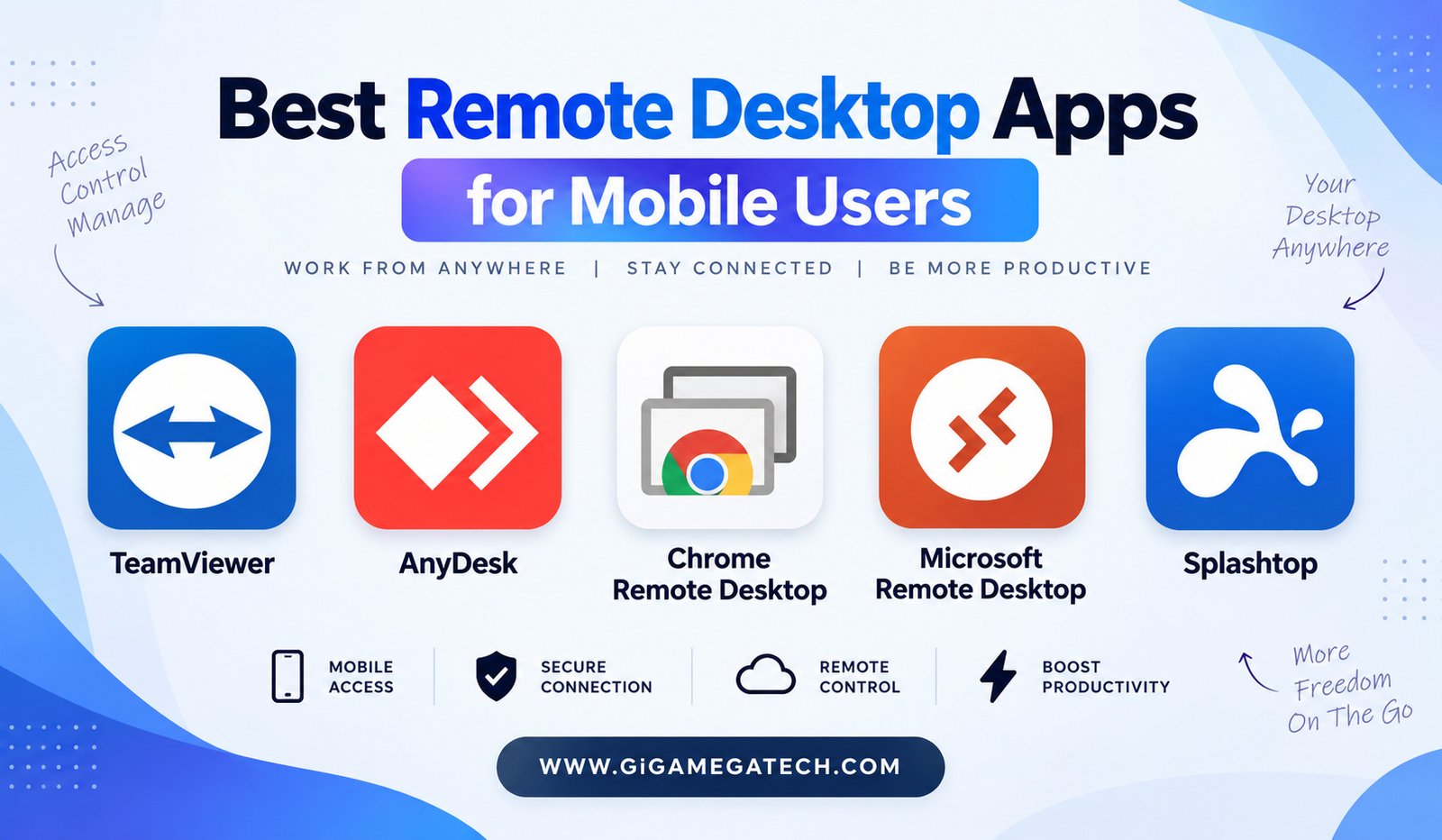
TeamViewer — Best for Cross-Platform Support
TeamViewer has long been a common choice for connecting across different operating systems. You can control a Windows desktop from an Android phone, or a Mac from an iPad, without extra hassle.
Setup involves installing the app on both devices and using a generated ID and password to connect. This process works reliably across most device combinations.
The app also supports file transfer during an active session, useful when you need to grab a document from your desktop while away.
Strengths
- Broad support across Windows, Mac, Linux, iOS, and Android
- Reliable connection quality across networks
- File transfer built into the same session
Drawbacks
- Free version is limited to personal, non-commercial use
- Business pricing can be expensive for small teams
AnyDesk — Best for Low Latency
AnyDesk built its reputation around fast, responsive connections, even on weaker internet. This matters a lot on mobile, where connection speed can vary throughout the day.
The interface stays simple, with a clean layout for entering a remote address and connecting quickly. New users tend to find it easy to pick up.
A standout feature is its frame rate optimization, which keeps the remote screen feeling smooth rather than choppy during movement-heavy tasks.
Strengths
- Strong performance on slower mobile connections
- Lightweight app size compared to some competitors
- Free for personal use
Drawbacks
- Some advanced features are locked behind paid plans
- Occasional connection drops reported on certain networks
Chrome Remote Desktop — Best Free Option
Chrome Remote Desktop works through your Google account, making setup fairly quick if you already use Chrome regularly. There is no separate account system to manage.
The mobile app connects to any desktop that has the Chrome extension installed and configured for remote access. Once set up, reconnecting later takes only a few taps.
Because it runs through Google’s infrastructure, it benefits from consistent cross-device syncing, tied directly to your existing Google login.
Strengths
- Completely free with no paid tier
- Simple setup tied to a Google account
- Works across Chromebooks, Windows, and Mac
Drawbacks
- Fewer advanced features compared to dedicated remote apps
- No built-in file transfer during a session
Microsoft Remote Desktop — Best for Windows Environments
Microsoft Remote Desktop suits users who mainly connect to Windows machines, particularly in office or school settings using Windows Remote Desktop Protocol.
The mobile app supports connecting to a Windows PC directly, without needing a third-party server in between. This can feel more direct compared to apps that route through outside servers.
It also supports multiple saved connections, useful for IT workers who manage several machines and switch between them often.
Strengths
- Direct connection to Windows machines using native RDP
- No extra account required beyond Windows credentials
- Good for managing multiple saved desktops
Drawbacks
- Requires the Windows machine to have Remote Desktop enabled
- Less useful for connecting to Mac or Linux systems
Splashtop — Best for Business Use
Splashtop leans toward business and IT support use cases, with features built around managing several devices at once. Many companies use it for help desk support.
The app supports session recording and access logs, useful for businesses needing an audit trail of remote sessions for compliance reasons.
One key feature is its multi-to-one licensing model, allowing IT staff to access many computers under a single subscription plan.
Strengths
- Strong fit for IT support and business teams
- Session logging and audit trail features
- Competitive pricing for managing several devices
Drawbacks
- Overkill for casual, personal use
- Setup takes longer compared to simpler consumer apps
How to Pick the Right App for Your Needs
Personal users checking their own home computer occasionally will likely do fine with Chrome Remote Desktop, since it is free and simple.
If speed matters most, especially on a spotty mobile connection, AnyDesk tends to perform well. Businesses managing several employee devices should look toward Splashtop or TeamViewer’s business plans instead.
Always check the security settings before connecting to any remote desktop app, particularly two-factor authentication, since you are exposing an entire computer through the connection.
Key Takeaways
- Best cross-platform pick: TeamViewer, for connecting across different operating systems
- Best for speed: AnyDesk, built around low latency connections
- Best free option: Chrome Remote Desktop, tied to your Google account
- Best for Windows-only setups: Microsoft Remote Desktop, using native RDP
- Best for business teams: Splashtop, with audit logs and multi-device support
FAQs
Is Chrome Remote Desktop really free?
Yes, Chrome Remote Desktop has no paid tier and works entirely for free.
Which remote desktop app works best on slow mobile data?
AnyDesk is generally recognized for maintaining smoother performance on weaker connections.
Do I need the same app installed on both devices?
In most cases yes, both the phone and the desktop need the matching app or extension installed.
Can I transfer files during a remote desktop session?
TeamViewer supports file transfer during a session, while some other apps do not include this by default.
Is remote desktop access secure?
Most reputable apps use encryption, though enabling two-factor authentication adds an extra layer of protection.
Conclusion
Choosing among the best remote desktop apps for mobile users comes down to your specific situation. TeamViewer suits cross-platform needs, AnyDesk suits speed-focused users, Chrome Remote Desktop suits free personal use, Microsoft Remote Desktop suits Windows-only setups, and Splashtop suits business teams. Match your choice to how and why you need remote access, and staying connected to your desktop becomes simple.