





Introduction
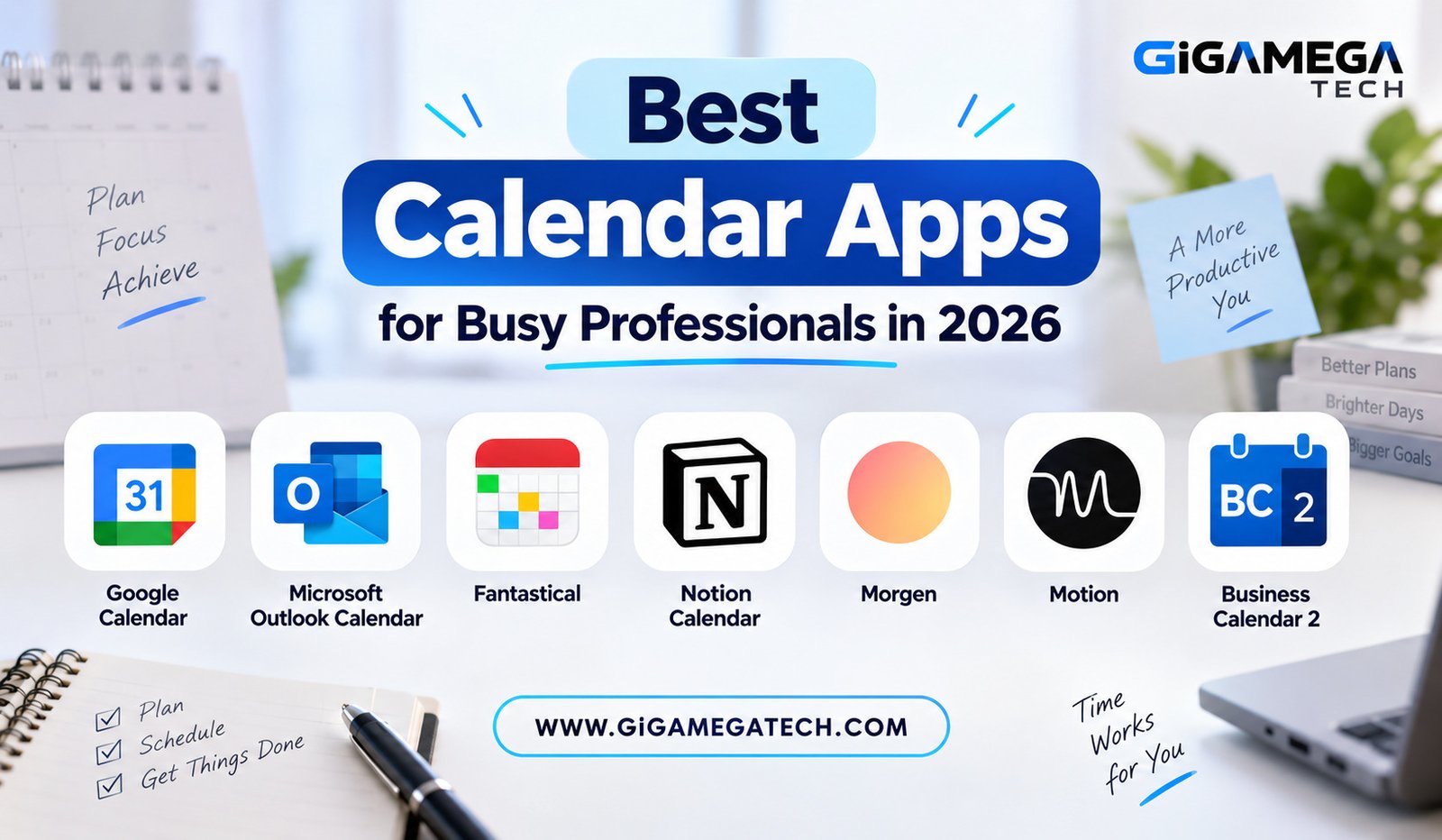
A packed schedule stops being manageable the moment you rely on memory alone. The best calendar apps for busy professionals turn scattered meetings, deadlines, and reminders into a single, clear view of your day. This guide walks through seven apps built to handle everything from simple scheduling to full time-blocking systems.
Modern calendar apps do far more than mark dates. Many now combine tasks, meeting links, and even automated scheduling, so you spend less time managing your calendar and more time actually working.
Google Calendar for Universal Compatibility
Google Calendar remains one of the most widely used scheduling tools, largely because it works everywhere without friction. It syncs instantly across Android, iPhone, and desktop browsers.
The app also detects events from confirmation emails automatically, adding flight times or restaurant reservations without you lifting a finger. That small automation saves a surprising number of manual entries over a year.
Key Features
- Shared calendars for teams, families, or project groups
- Automatic event creation from Gmail confirmations
- Multiple calendar views, including day, week, and month
- Direct integration with Google Meet for video calls
Google Calendar is free and works well as a foundation, even if you later add a specialized app on top of it for deeper planning features.
Microsoft Outlook Calendar for Office Integration
For professionals already living inside Microsoft 365, Outlook Calendar keeps scheduling tied directly to email and Teams meetings. Creating an event from an email thread takes just a couple of taps.
Standout Tools
- Scheduling assistant that finds open time across attendees
- Direct Teams meeting links added automatically to events
- Shared calendars across departments or project teams
- Focused inbox integration that reduces scheduling clutter
Outlook Calendar shines brightest in workplaces that already run on Microsoft tools. Trying to use it standalone, without the rest of the Office ecosystem, removes much of its advantage.
Fantastical for Fast Event Creation
Fantastical built its reputation on natural language input. You can type “lunch with Priya Friday at noon” and the app creates a properly formatted event without extra taps.
Why Professionals Like It
- Natural language parsing for quick event entry
- Weather forecasts shown directly next to relevant events
- Interesting Calendars feature for holidays and local events
- Clean, polished interface across supported devices
Fantastical works best for users in the Apple ecosystem, with more limited functionality on Android. If speed of entry matters more than anything else, it is worth trying during its free trial period.
Notion Calendar for Notion Users
If your projects and notes already live in Notion, Notion Calendar keeps scheduling in the same ecosystem. Events can link directly to related Notion pages, tasks, or project boards.
Core Capabilities
- Two-way sync between calendar events and Notion databases
- Multiple calendar layering so you can view several accounts at once
- Meeting notes that attach directly to calendar events
- Free to use across web, desktop, and mobile
This app works best as a companion to an existing Notion workflow rather than a first calendar app for someone with no Notion setup. For dedicated Notion users, though, the integration removes a lot of manual copying between tools.
Morgen for Unified Time Planning
Morgen aims to solve a common problem: professionals often juggle multiple calendars, plus a separate task list, without any single view tying them together. Morgen merges all of it into one dashboard.
Notable Features
- Frames feature for protecting blocks of deep focus time
- Task integration alongside traditional calendar events
- Support for connecting multiple calendar accounts at once
- AI-assisted scheduling suggestions for open time slots
Morgen suits solo professionals and founders who want full control over their final schedule while still getting some automated planning help. It requires more setup time than a basic calendar app, but the payoff is a genuinely unified system.
Motion for AI-Driven Scheduling
Motion takes automation further than most calendar apps by actively rebuilding your schedule around deadlines and priorities. You add tasks and events, and Motion decides where they fit throughout your day.
What Sets It Apart
- Automatic rescheduling when conflicts or delays appear
- Deadline-based task placement across the week
- Meeting scheduling links similar to dedicated booking tools
- Continuous adjustments as new items get added
Motion suits people in deadline-heavy roles who are comfortable trading some manual control for automation. It has a steeper learning curve and a higher price point than simpler calendar apps, so it fits a specific type of user best.
Business Calendar 2 for Android Customization
Business Calendar 2 focuses specifically on Android users who want deep customization without needing a full task management system attached. It keeps the interface familiar while adding useful extras underneath.
Everyday Tools
- Multiple view options, including agenda, week, and year views
- Custom color coding for different event categories
- Widget support for quick glances from the home screen
- To-do list features built directly into the calendar
This app appeals to professionals who want a native Android feel with more flexibility than the stock calendar app offers. It stays lightweight compared to AI-driven tools like Motion, which suits users who prefer manual control over their schedule.
Key Takeaways
- Best for universal use: Google Calendar syncs everywhere and works for most people.
- Best for Office users: Microsoft Outlook Calendar ties directly into Teams and email.
- Best for fast entry: Fantastical uses natural language to create events quickly.
- Best for Notion users: Notion Calendar links events to existing project pages.
- Best for unified planning: Morgen merges tasks, focus time, and calendars together.
- Best for automation: Motion actively rebuilds your schedule around deadlines.
- Best for Android customization: Business Calendar 2 adds flexibility to native scheduling.
Frequently Asked Questions
Can I use more than one calendar app at the same time?
Yes, many professionals sync a main calendar like Google Calendar into a secondary app for extra planning features.
Do AI scheduling apps like Motion require a subscription?
Yes, Motion and similar AI-driven tools typically operate on a paid subscription model.
Is Fantastical available on Android?
Fantastical offers limited Android functionality, since its most advanced features are built primarily for Apple devices.
Which calendar app works best for teams?
Microsoft Outlook Calendar and Google Calendar both offer strong shared scheduling features for teams.
Do these calendar apps sync across phone and desktop?
Yes, all seven apps listed here sync calendar data across phone, tablet, and desktop versions.
Conclusion
The best calendar apps for busy professionals depend on how much structure you actually want. Google Calendar and Outlook cover the fundamentals reliably, while Morgen and Motion push further into automated planning for those ready to hand over more control. Business Calendar 2 and Notion Calendar fill specific niches for Android and Notion users. Pick the one that matches how your week actually runs, not the one with the longest feature list.