
Introduction
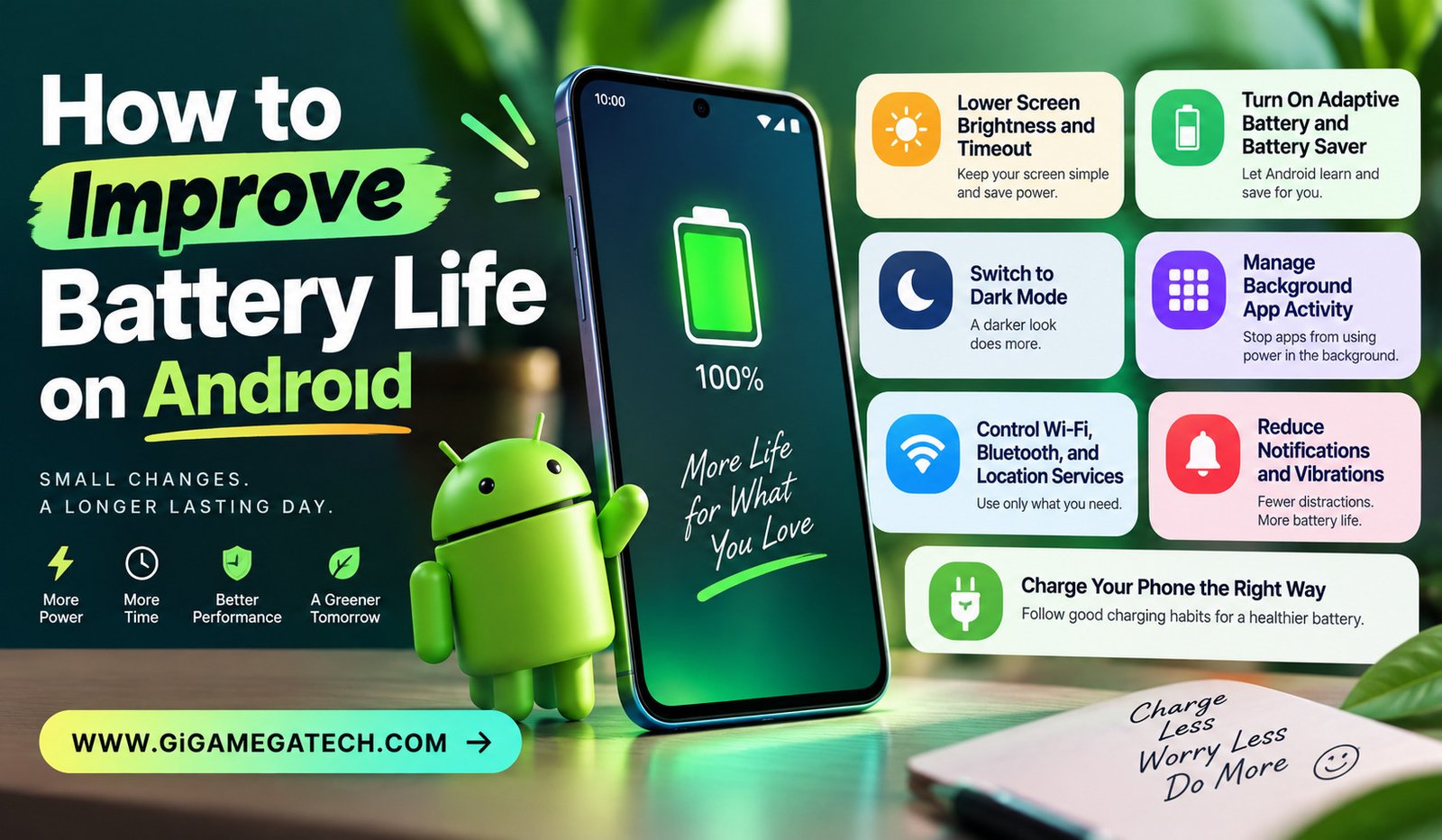
Watching your battery percentage drop faster than expected is one of the more annoying parts of owning a smartphone. Learning how to improve battery life on Android does not require buying a new phone or carrying around a power bank everywhere. This guide covers seven practical changes that address the biggest sources of battery drain, from screen settings to charging habits.
Battery drain usually comes from a combination of small factors rather than one single cause. Working through the steps below together, rather than picking just one, tends to produce the most noticeable improvement.
Lower Screen Brightness and Timeout
The display is one of the biggest sources of battery drain on any smartphone. Small adjustments here often produce the most noticeable results.
Steps to Adjust Display Settings
- Go to Settings, then Display, and lower the brightness slider.
- Turn on Adaptive Brightness so the screen adjusts automatically to your surroundings.
- Shorten the screen timeout so the display turns off sooner when idle.
- Disable Always-On Display if your phone supports it, since it draws power constantly.
Even a small reduction in brightness, combined with a shorter timeout, adds up significantly over a full day of use.
Turn On Adaptive Battery and Battery Saver
Android includes built-in tools designed specifically to manage power use without requiring constant manual adjustments from you.
How to Enable These Features
- Go to Settings, then Battery, then Adaptive Preferences, and turn on Adaptive Battery.
- Turn on Battery Saver mode when your charge starts running low.
- On some devices, an Extreme Battery Saver option further limits background activity for critical situations.
Adaptive Battery learns which apps you use often and restricts power to apps you rarely open. This runs quietly in the background without needing regular attention.
Switch to Dark Mode
If your phone has an OLED or AMOLED screen, Dark Mode can meaningfully reduce power use, since these displays turn off individual pixels to show black.
How to Turn On Dark Mode
- Go to Settings, then Display.
- Select Dark Mode or Dark Theme.
- Set it to activate automatically at sunset, if your phone supports scheduling.
This change works best on OLED screens specifically. On older LCD displays, the battery savings from Dark Mode are much smaller.
Manage Background App Activity
Apps running unnecessary tasks in the background are a common, often overlooked source of battery drain.
Ways to Limit Background Activity
- Go to Settings, then Apps, then select an app you rarely use.
- Restrict its background data or force-stop it if it is not currently needed.
- Uninstall apps you no longer use, since they may still run background processes.
- Consider installing Lite versions of heavy apps, which use fewer system resources.
Quick Checklist
- Review which apps use the most battery under Settings, then Battery
- Force-stop apps with unusually high background activity
- Remove widgets that constantly refresh data
- Keep apps updated, since updates often include efficiency improvements
Control Wi-Fi, Bluetooth, and Location Services
Leaving Wi-Fi, Bluetooth, and location services active at all times causes your phone to constantly scan for nearby networks and devices, even when you are not using them.
Settings to Adjust
- Turn off Wi-Fi and Bluetooth when you do not need them, especially overnight.
- Switch to 4G instead of 5G when you do not need maximum speed.
- Set location accuracy to Device Only or turn it off entirely when not navigating.
- Turn on Airplane Mode in areas with poor signal, since a weak connection drains battery faster than no connection at all.
These settings matter most in situations with weak signal strength, since your phone works harder to maintain a stable connection under those conditions.
Reduce Notifications and Vibrations
Every notification wakes your screen and processor briefly, and vibration motors use more power than most people expect.
Adjustments Worth Making
- Turn off notifications for apps you do not need to hear from immediately.
- Switch from vibration to ringtone for calls when you are in a predictable environment, like home or the office.
- Lower vibration intensity for keyboard taps and other minor interactions.
- Reduce the number of home screen widgets, since many refresh data constantly.
Cutting down on unnecessary notifications also has the side benefit of reducing daily distractions, not just saving battery.
Charge Your Phone the Right Way
How you charge your phone affects long-term battery health, which in turn affects how well it holds a charge as the device ages.
Good Charging Habits
- Avoid leaving your phone plugged in constantly after it reaches 100 percent.
- Charge in shorter sessions rather than one long overnight charge whenever practical.
- Avoid letting the battery drop to 0 percent regularly.
- Keep your phone at a moderate temperature while charging, since heat degrades batteries faster.
Checking Battery Health
- Go to Settings, then Battery, to review battery usage patterns over time.
- A battery holding a much lower charge than it used to may need replacement rather than a settings fix.
Key Takeaways
- Display settings: Lower brightness and shorten timeout for one of the biggest quick wins.
- Built-in tools: Adaptive Battery and Battery Saver manage power automatically.
- Dark Mode: Saves noticeable battery specifically on OLED and AMOLED screens.
- Background apps: Restrict or remove apps running unnecessary background tasks.
- Connectivity: Turn off Wi-Fi, Bluetooth, and precise location when not in use.
- Notifications: Fewer alerts and lighter vibration settings reduce small, constant drains.
- Charging habits: Avoid constant full charges and extreme temperature exposure.
Frequently Asked Questions
Does closing background apps manually actually help battery life?
Yes, force-stopping apps that run unnecessary background tasks can reduce battery drain, though modern Android already manages most apps automatically.
Is it bad to charge my phone overnight every night?
Occasional overnight charging is generally fine, though avoiding it regularly can help preserve long-term battery health.
Does 5G drain battery faster than 4G?
Yes, 5G typically uses more power than 4G, especially in areas with a weaker signal.
How do I check my Android’s battery health?
You can review battery usage patterns and overall health under Settings, then Battery, though the exact menu varies by phone brand.
Will Dark Mode help battery life on every phone?
No, Dark Mode mainly helps on OLED or AMOLED screens, since LCD screens do not save power the same way from displaying black pixels.
Conclusion
Improving battery life on Android usually comes down to a handful of small, repeatable habits rather than one dramatic fix. Adjusting your display settings, managing background apps, and charging your phone thoughtfully will noticeably extend how long your battery lasts each day. Work through these seven steps together, and you should notice your phone lasting well past the point it used to need a midday charge.