





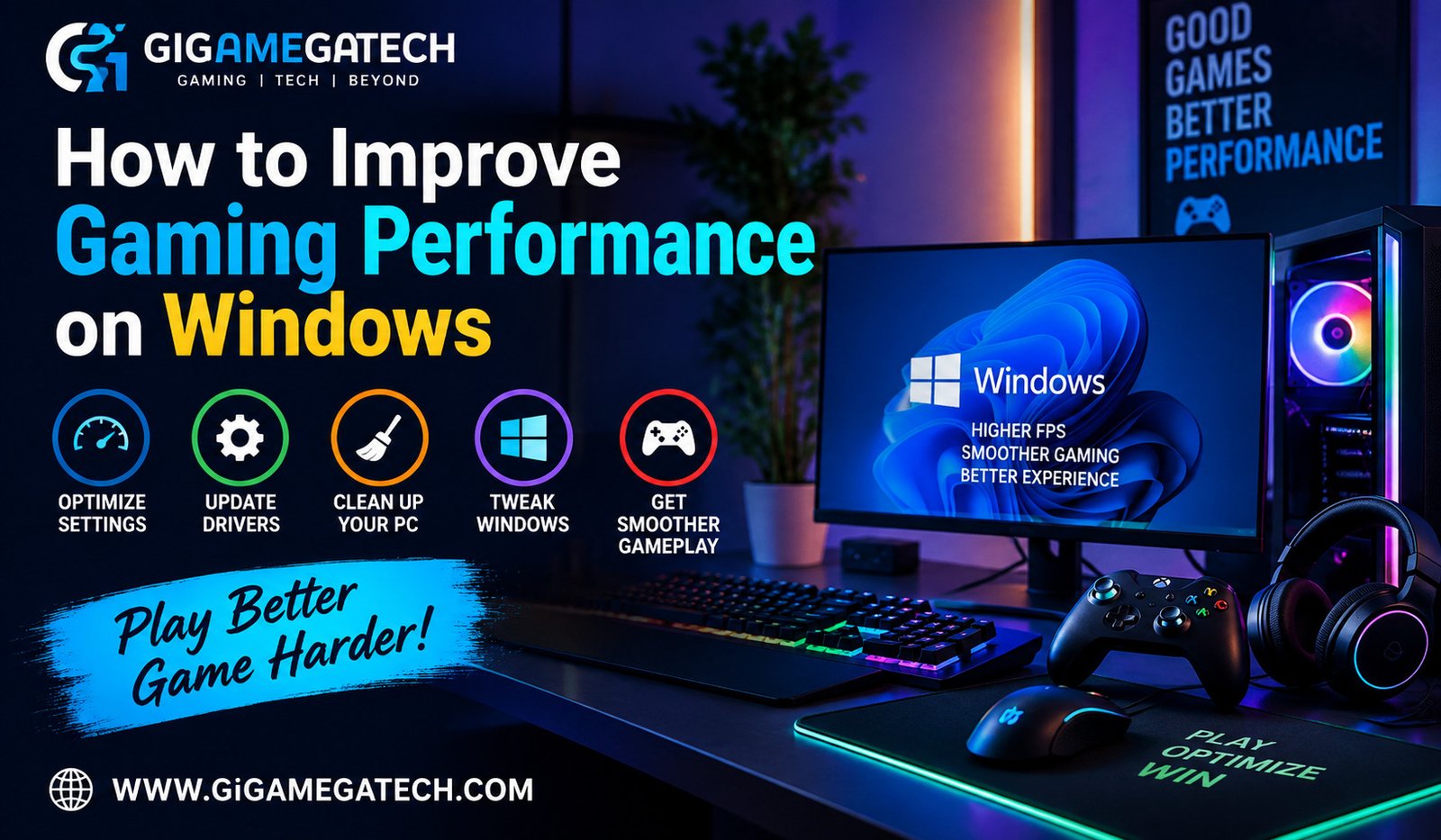
Lag spikes and choppy frame rates can ruin an otherwise great gaming session. If you want to improve gaming performance on Windows, you do not need a brand new computer. Most slowdowns come from outdated drivers, poor settings, or a system cluttered with background tasks. This guide walks through practical, low-cost fixes you can apply today, along with a few upgrade options for when software tweaks are not enough.
Update Your Graphics Drivers and Windows
Your graphics card driver acts as the bridge between your games and your hardware. An old driver can cause stutters, crashes, or missed performance gains that newer games rely on.
Keep Drivers Current
- Check NVIDIA, AMD, or Intel official websites for the latest driver version.
- Use the manufacturer app (GeForce Experience, AMD Software, or Intel Arc Control) to automate updates.
- Restart your PC after every driver install to avoid conflicts.
Update Windows Itself
Windows updates often include performance patches and fixes for known gaming bugs. Go to Settings, then Windows Update, and install anything pending. Do not skip optional updates that mention graphics or DirectX components.
Optimize Windows Power and Performance Settings
Windows ships with power plans that are not always tuned for gaming. A laptop or desktop set to a balanced or power saving plan may hold back your processor and graphics card.
Switch to High Performance
- Open Control Panel and search for Power Options.
- Select High Performance or Ultimate Performance if available.
- On laptops, plug in before gaming, since battery mode limits performance.
Turn On Game Mode
Windows includes a built in Game Mode that pauses background updates and notifications while you play. You can find it under Settings, then Gaming, then Game Mode. Switch it on for a small but real reduction in interruptions.
Adjust Graphics Performance Preference
In Settings, under System, then Display, then Graphics, you can set individual games to use high performance graphics rather than power saving mode. This matters most on laptops with both integrated and dedicated graphics chips.
Reduce Background Processes and Bloat
Every app running in the background competes for CPU time, memory, and disk access. Trimming this list frees up resources for your game.
Close Unnecessary Programs
- Press Ctrl, Shift, and Escape to open Task Manager.
- Sort by CPU or Memory usage.
- End tasks for apps you are not using, such as browsers with many tabs or chat clients.
Disable Startup Apps
Many programs launch automatically when Windows boots, even if you rarely use them. In Task Manager, open the Startup Apps tab and disable anything unnecessary. This shortens boot time and reduces idle resource use.
Watch Out for Overlays
Recording tools, chat overlays, and launcher notifications can quietly eat into your frame rate. Disable overlays you do not actively need, one at a time, and test the difference.
Tune In-Game Graphics Settings
Sometimes the biggest performance gains come from inside the game itself, not from Windows.
Lower Demanding Settings First
Certain settings cost more performance than they add in visual quality. Consider lowering these first:
- Shadow quality
- Anti-aliasing
- Ambient occlusion
- Motion blur and depth of field
Match Resolution to Your Monitor
Running a game below your monitor’s native resolution can boost frame rates, though the image may look softer. Try a small step down, such as from 1440p to 1080p, before jumping further.
Use Built-In Benchmarks
Many modern games include a benchmark tool. Run it after each settings change to see a clear before and after comparison, rather than guessing based on how the game feels.
Consider Hardware Upgrades
If software tweaks only get you so far, your hardware may be the actual bottleneck. RAM, storage, and the graphics card are the three most common culprits.
Add More RAM
Modern games often expect 16GB of RAM as a comfortable baseline. If you are running 8GB or less, upgrading can reduce stutter, especially while alt-tabbing or streaming.
Switch to an SSD
Loading from a traditional hard drive is noticeably slower than loading from a solid state drive. Moving your operating system and most played games to an SSD cuts load times significantly.
Upgrade the Graphics Card
If your GPU is several generations old, it may simply lack the power for newer titles at higher settings. Research a card that fits your power supply and case size before buying.
Manage Temperature and Dust
Overheating causes your CPU and GPU to throttle, meaning they slow themselves down to avoid damage. This directly hurts frame rates during long sessions.
Clean Your Hardware
Dust buildup blocks airflow inside your case. Every few months, open the case and clean fans, vents, and heatsinks with compressed air.
Improve Airflow
Make sure your case has clear intake and exhaust paths. Avoid placing your PC in an enclosed cabinet without ventilation.
Monitor Temperatures
Free tools such as HWMonitor or MSI Afterburner let you watch CPU and GPU temperatures in real time. If temperatures climb well above normal during gaming, that is a sign your cooling setup needs attention.
Optimize Your Network for Online Gaming
Local frame rate is only half the story for online games. A weak or unstable connection can cause rubber banding and input delay even on a powerful PC.
Prefer a Wired Connection
Wi-Fi is convenient, but it is more prone to interference and signal drops than a wired setup. An ethernet cable connected directly to your router gives you a steadier and often faster connection.
Close Bandwidth-Heavy Apps
Streaming services, cloud backups, and large downloads running in the background can eat up your available bandwidth. Pause these before starting a match, especially in fast paced online games.
Adjust Router Settings
- Restart your router occasionally to clear its memory.
- Enable Quality of Service, often shown as QoS, so gaming traffic gets priority.
- Move the router closer to your PC, or use a mesh extender, if signal strength is weak.
Check Your Ping in Game
Most online games display a ping number in the settings or during matches. A lower number generally means less delay between your actions and what happens on screen. If your ping spikes often, contact your internet provider to ask about line quality.
Free Up Storage and Trim Visual Effects
A nearly full hard drive or SSD can slow down your entire system, including game load times and saving.
Clear Unused Files and Games
Uninstall games you no longer play and clear temporary files using the built in Disk Cleanup tool. Keeping at least 15 to 20 percent of your drive free helps Windows manage files efficiently.
Simplify Windows Visual Effects
Windows applies animations and shadows across menus and windows by default. These effects use a small amount of system resources that gamers may prefer to save.
- Search for Adjust the appearance and performance of Windows in the Start menu.
- Choose Adjust for best performance, or manually turn off effects you do not need.
- Apply the changes and restart your PC.
Defragment or Optimize Your Drive
If you still use a traditional hard drive, defragmenting it periodically keeps file access efficient. SSDs do not need defragmenting, but Windows includes an Optimize Drives tool that handles both drive types correctly on its own schedule.
Explore Safe Overclocking
Overclocking pushes your CPU or GPU to run faster than its default speed. Done carefully, it can add noticeable performance without buying new hardware.
Understand the Basics
Overclocking increases heat output and power draw. It is not something to attempt without decent cooling already in place, and results vary between individual chips.
Start With GPU Overclocking
Graphics card manufacturer software, such as MSI Afterburner, lets you raise the core clock and memory clock in small steps. Increase settings gradually, testing stability with a benchmark after each change.
Approach CPU Overclocking With Caution
CPU overclocking usually requires access to BIOS settings and a compatible motherboard. Beginners should research their specific processor model closely before adjusting voltage or clock speed, since mistakes can cause instability or shorten hardware lifespan.
Know When to Stop
If you see crashes, graphical glitches, or unusually high temperatures after a change, roll back to the previous stable setting. Small, steady gains are better than an unstable system chasing maximum numbers.
Track Performance Over Time
Improving performance is not a one time task. Games, drivers, and background software all change over time, so it helps to keep an eye on your system.
Use Built-In Performance Tools
Windows Task Manager and the Xbox Game Bar, opened with the Windows key and G, both show real time CPU, GPU, and memory usage while you play. Reviewing this occasionally helps you catch new bottlenecks early.
Keep a Simple Log
- Note your average frame rate after major driver or Windows updates.
- Record any new stutter or crash issues and when they started.
- Compare notes before and after hardware changes.
Revisit Settings Periodically
Game updates sometimes add new graphics options or reset settings to default. Checking your settings every few months ensures you are still running the configuration that works best for your system.
Key Takeaways
- Drivers matter most: Always keep graphics drivers and Windows updated first.
- Power settings count: Switch to High Performance mode and enable Game Mode.
- Trim the background: Close unused apps and disable unnecessary startup programs.
- Settings before hardware: Lower demanding in-game settings before spending money.
- RAM and SSD upgrades help most: These two upgrades often give the biggest practical boost.
- Heat kills performance: Clean dust and monitor temperatures regularly.
- Wired beats wireless: Use an ethernet cable for a steadier online connection.
- Free space helps: Keep 15 to 20 percent of your drive free and disable unneeded visual effects.
- Overclock gradually: Raise clock speeds in small steps and roll back if problems appear.
- Check in regularly: Performance needs occasional review, not just a one time fix.
FAQs
Does updating graphics drivers really improve frame rates? Yes, updated drivers often include specific optimizations for newer games and can fix stutter or crash issues.
Is Game Mode in Windows worth turning on? It offers a modest benefit by reducing background interruptions, so it is worth enabling with no real downside.
How much RAM do I need for smooth gaming on Windows? Most modern games run comfortably with 16GB of RAM, though some titles may want more.
Will an SSD upgrade improve my frame rate during gameplay? An SSD mainly improves load times rather than in-game frame rate, but it reduces stutter tied to loading assets.
How do I know if my PC is overheating during gaming? Use a monitoring tool like HWMonitor to check if CPU or GPU temperatures rise far above their normal range during play.
Does a wired connection really matter for online gaming? Yes, a wired ethernet connection is generally steadier than Wi-Fi and reduces the chance of sudden lag spikes.
Is overclocking safe for beginners? Overclocking can be safe if done in small steps with good cooling, but beginners should research their specific hardware first.
Conclusion
Improving gaming performance on Windows usually starts with the basics: updated drivers, sensible power settings, and a lighter background load. From there, adjusting in-game graphics settings can squeeze out extra frames without spending a cent. When software changes are not enough, targeted upgrades to RAM, storage, or your graphics card tend to offer the best return. A stable network connection, a tidy drive, and careful overclocking can add further gains for players chasing every last frame. Combine these steps with regular cleaning, temperature checks, and periodic performance reviews, and your system should run cooler, faster, and more reliably for every gaming session.