






Introduction
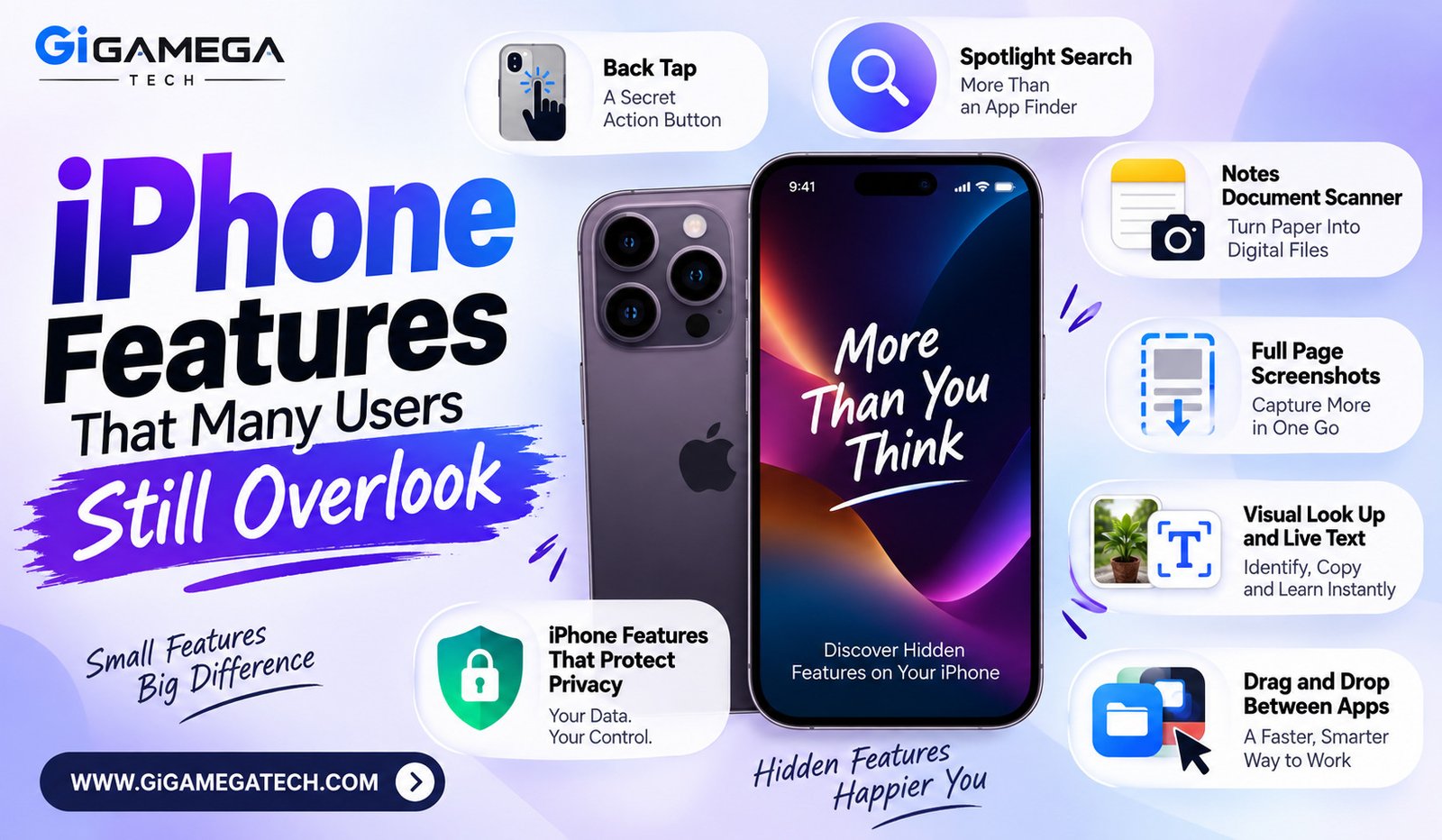
Most people carry an iPhone every day yet only touch a small slice of what it can do. Even long-time owners are often surprised to learn how many iPhone features that many users still overlook sit just a few taps below the surface. None of these tools need a new device or a paid app. They only need a few minutes inside Settings. This guide walks through some of the most useful overlooked features on any iPhone running a recent version of iOS.
Apple tends to spotlight a handful of headline features during its yearly announcements, leaving smaller improvements to quietly ship without much attention. Those smaller additions often end up saving the most time day to day, since they fix small annoyances rather than add entirely new categories of use. The features below fall into that category, and every one of them can be switched on in under a minute.
Back Tap: A Secret Action Button
Back Tap turns the back of an iPhone into a shortcut trigger. A double or triple tap can open the camera, toggle the flashlight, or launch a custom Shortcut.
To turn it on, open Settings, then go to Accessibility, then Touch, then Back Tap. Choose Double Tap or Triple Tap, then pick an action from the list.
How to set it up
- Open Settings and tap Accessibility
- Tap Touch, then scroll to Back Tap
- Choose Double Tap or Triple Tap
- Assign an action, a system function, or a Shortcut
Back Tap works best with a firm tap near the upper half of the phone, close to the camera. A thick case may need a slightly harder tap to register.
This feature works especially well for one-handed use. Reaching for the Notification Center or Control Center while holding groceries, a coffee, or a stroller handle becomes far easier with a simple double tap on the back of the phone instead. Two separate actions can be assigned, one to the double tap and another to the triple tap, which effectively doubles the shortcut space available.
Spotlight Search: More Than an App Finder
Many people only open Spotlight when they cannot find an app icon. That barely scratches the surface of what it searches.
Spotlight can pull up contacts, messages, files, settings, and content buried inside individual apps. Typing a person’s name can even surface photos of them.
Swiping down on the Home Screen and typing a query is usually faster than swiping through several Home Screen pages by hand. Building that single habit saves real time over a week of regular use.
Spotlight also reaches into individual apps rather than stopping at their icons. A search for a restaurant name can surface a saved reservation, a text conversation, and a related photo all in the same results list. That kind of cross-app search is easy to forget exists once someone gets used to opening one app at a time.
Notes Document Scanner
A surprising number of people download a separate scanner app without realizing that Notes already includes one. The built-in scanner captures documents, straightens the page, and saves the result as a searchable file.
This removes the need for a third-party app for something as simple as scanning a receipt or a signed form. It also keeps the scan inside an app most people already check daily.
To use it, open a new or existing note, tap the camera icon, then choose Scan Documents. The camera automatically detects the edges of a page and captures it once the page holds steady. Multiple pages can be added to a single scan before saving, which works well for anything longer than one sheet.
Full Page Screenshots
A standard screenshot only captures what is visible on screen at that moment. iOS also supports a full page screenshot that captures an entire webpage or document from top to bottom in one image.
This is especially useful for saving a long article, a receipt, or a full conversation thread without stitching several screenshots together manually.
To capture one, take a normal screenshot of a webpage or a document inside a supported app, then tap the thumbnail that appears in the corner. A Full Page option shows up alongside the usual Screen option, and choosing it saves the entire scrollable content as a single PDF rather than a cropped image.
Visual Look Up and Live Text
Visual Look Up can identify plants, pets, landmarks, and other objects directly inside a photo. Taking a screenshot or opening an image triggers an indicator when the system recognizes something worth exploring.
Live Text works alongside this by pulling text straight out of a photo. A screenshot of a flyer or a whiteboard becomes text that can be copied into a message or a note in seconds.
Drag and Drop Between Apps
Moving content between apps does not always require copy and paste. A photo can be dragged directly from Photos into a Messages conversation. A link can move from Safari straight into Notes.
A few practical examples
- Drag a photo from Photos into an email draft
- Drag a link from Safari into Notes
- Drag selected text from one app into another
Once this habit forms, switching between apps to move a single piece of content feels unnecessary.
This works because iOS treats a long press plus a drag as a temporary hold on whatever gets selected, whether that is a photo, a file, or a block of text. Releasing the drag over a second open app, including a second app in Split View, drops the content in that exact spot. Multiple items can even be picked up one at a time and dropped together as a batch.
iPhone Features That Protect Privacy
Several overlooked settings exist specifically to limit tracking rather than add a flashy new tool. Photo location data can be removed on a per-photo or per-share basis before sending an image to someone else.
Call Screening is another example worth mentioning. Siri can answer an unknown call, display a live transcript of what the caller says, and let the owner decide whether to pick up.
These settings take seconds to enable and use little to no extra battery. Most function as simple toggles rather than complex configuration menus.
Location sharing with carriers can also be limited from inside Settings, under Privacy and Security. Someone concerned about how much location data leaves the phone can review this setting alongside photo location removal for a fuller picture of what gets shared and with whom.
Key Takeaways
- Back Tap: Turns the back of the phone into a shortcut trigger for a favorite action.
- Spotlight: Searches contacts, messages, files, and in-app content, not just app names.
- Notes scanner: Removes the need for a separate document scanning app.
- Full page screenshots: Capture an entire webpage or thread in one image.
- Visual Look Up and Live Text: Identify objects and pull text directly out of photos.
- Privacy tools: Photo location removal and Call Screening protect information with minimal setup.
FAQs
Do these overlooked iPhone features require a new iPhone?
Most of these features work on any iPhone that supports a recent version of iOS, not only the newest models.
Where can a person find the Back Tap setting?
Back Tap is located inside Settings, under Accessibility, then Touch, then Back Tap.
Does using these hidden settings drain the battery faster?
Most of these features are simple toggles that use little to no extra battery power.
Can Live Text copy text from any photo?
Live Text works on photos where text is clearly visible, such as signs, documents, and screenshots.
Is the Notes document scanner as good as a separate scanner app?
The built-in Notes scanner handles common tasks like straightening and saving documents without installing anything extra.
Conclusion
Anyone who assumes they already know everything their phone can do is likely missing several of these iPhone features that many users still overlook. Back Tap, Spotlight, the Notes scanner, full page screenshots, Visual Look Up, drag and drop, and a handful of privacy settings all sit quietly inside Settings and everyday apps. None of them need extra hardware or a paid download. A few minutes spent exploring these tools can make daily use of an iPhone noticeably smoother.